A tour of the SHIPIT window
A short tour of the window: where to look to start something, watch agents work and find Settings.
-
01The switcher at the top
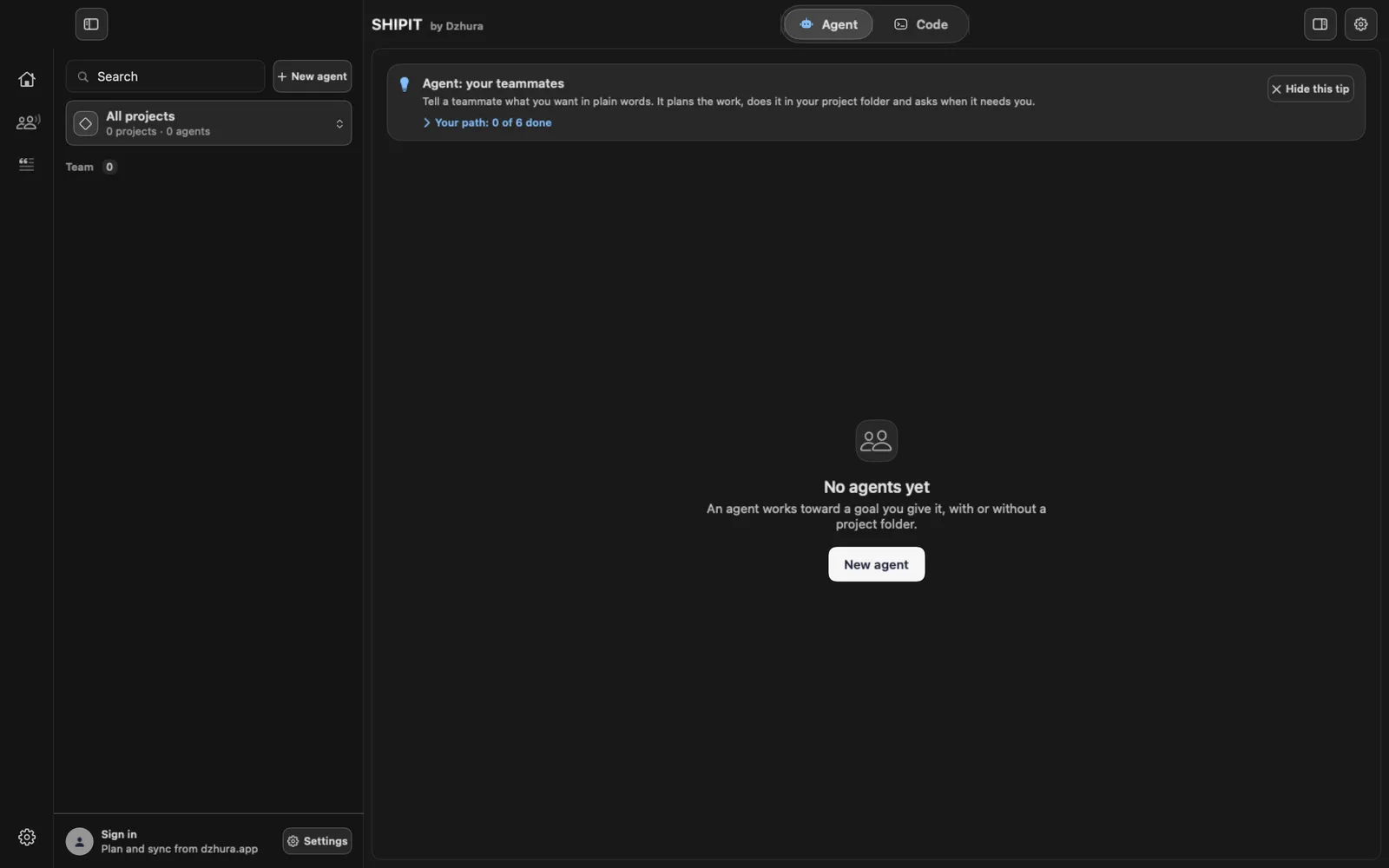
In the middle of the top bar there are two tabs: Agent and Code. The first is for talking to agents in plain words, the second for panes with terminals. Chat lives inside the Agent tab.
-
02Start: what to make
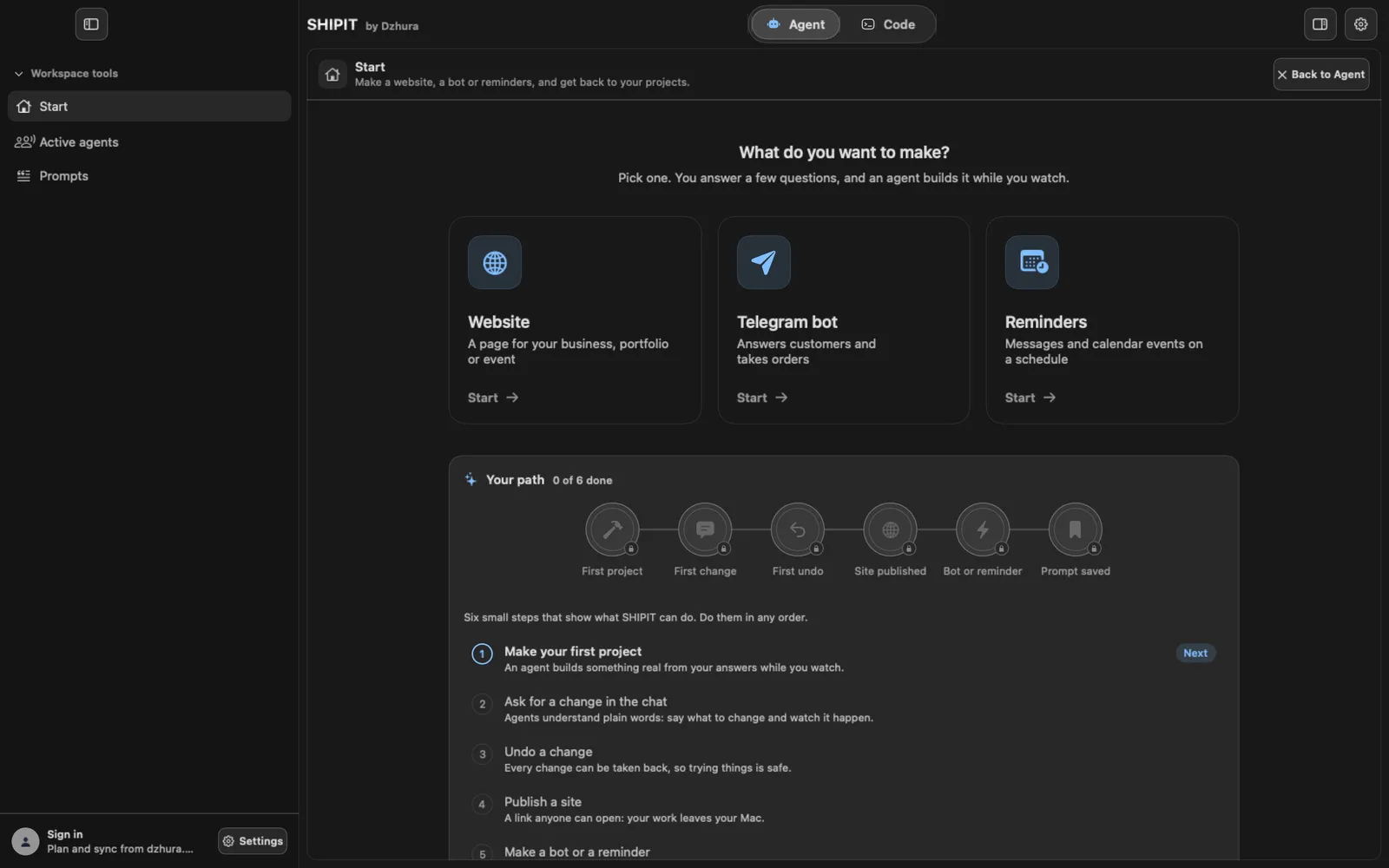
The Start screen asks What do you want to make? The Website, Telegram bot and Reminders cards start a project: you answer a few questions, and an agent builds it while you watch. Below sits the Your path card.
TipStart is there on Beginner and Intermediate. Pro has no Start.
-
03The Agent tab: your teammates
Tell a teammate what you want in plain words. It plans the work, does it in your project folder and asks when it needs you. The New agent button starts a new one.
The tip on top goes away with Hide this tip.
-
04The Code tab: panes
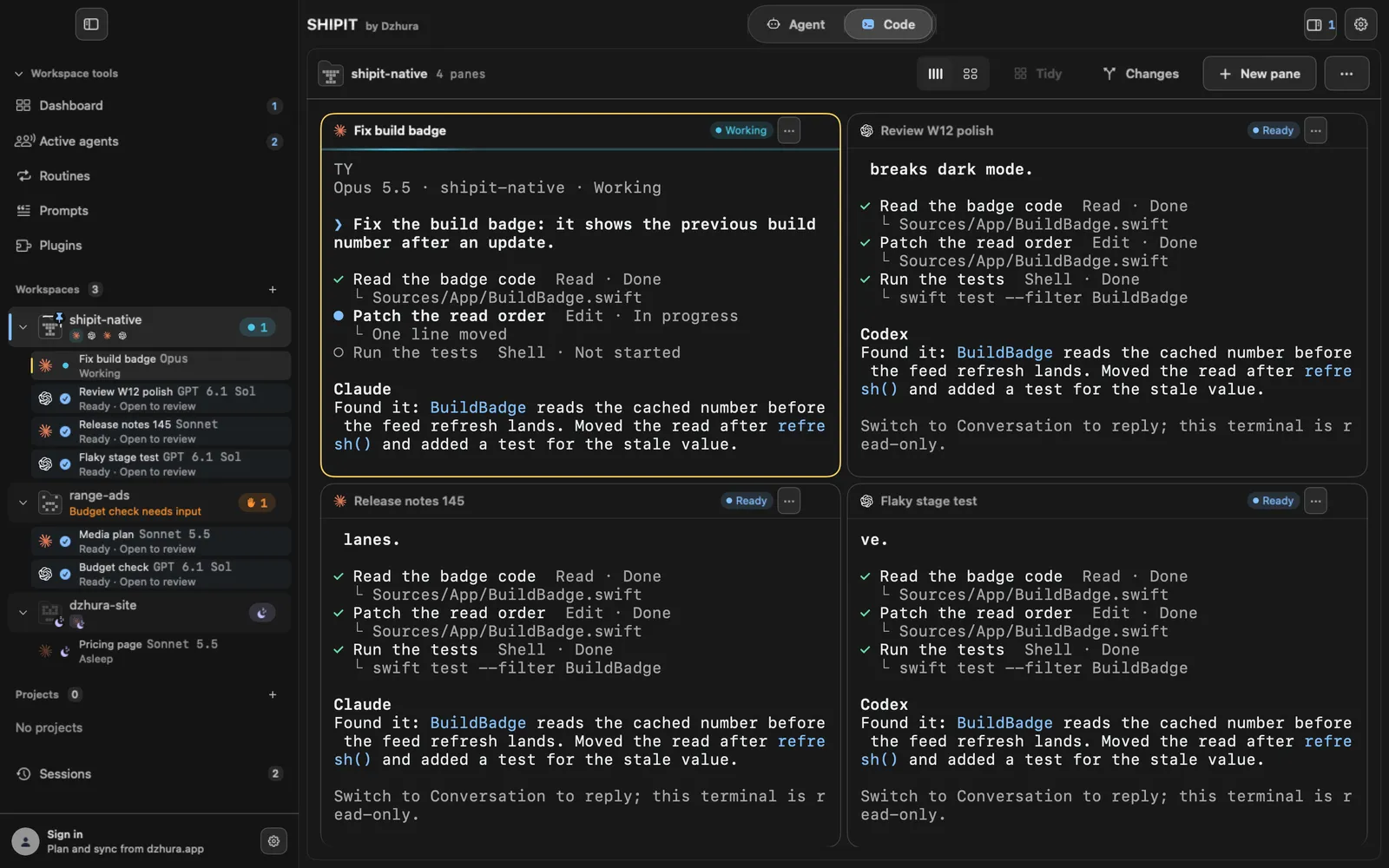
In the Code tab panes sit side by side. Each pane works in a project folder: an agent such as Claude Code or Codex, or a plain terminal. The active pane has a coloured ring.
On the left is the list of projects: you see where an agent is working, where it waits for you and where a pane is asleep.
-
05Settings
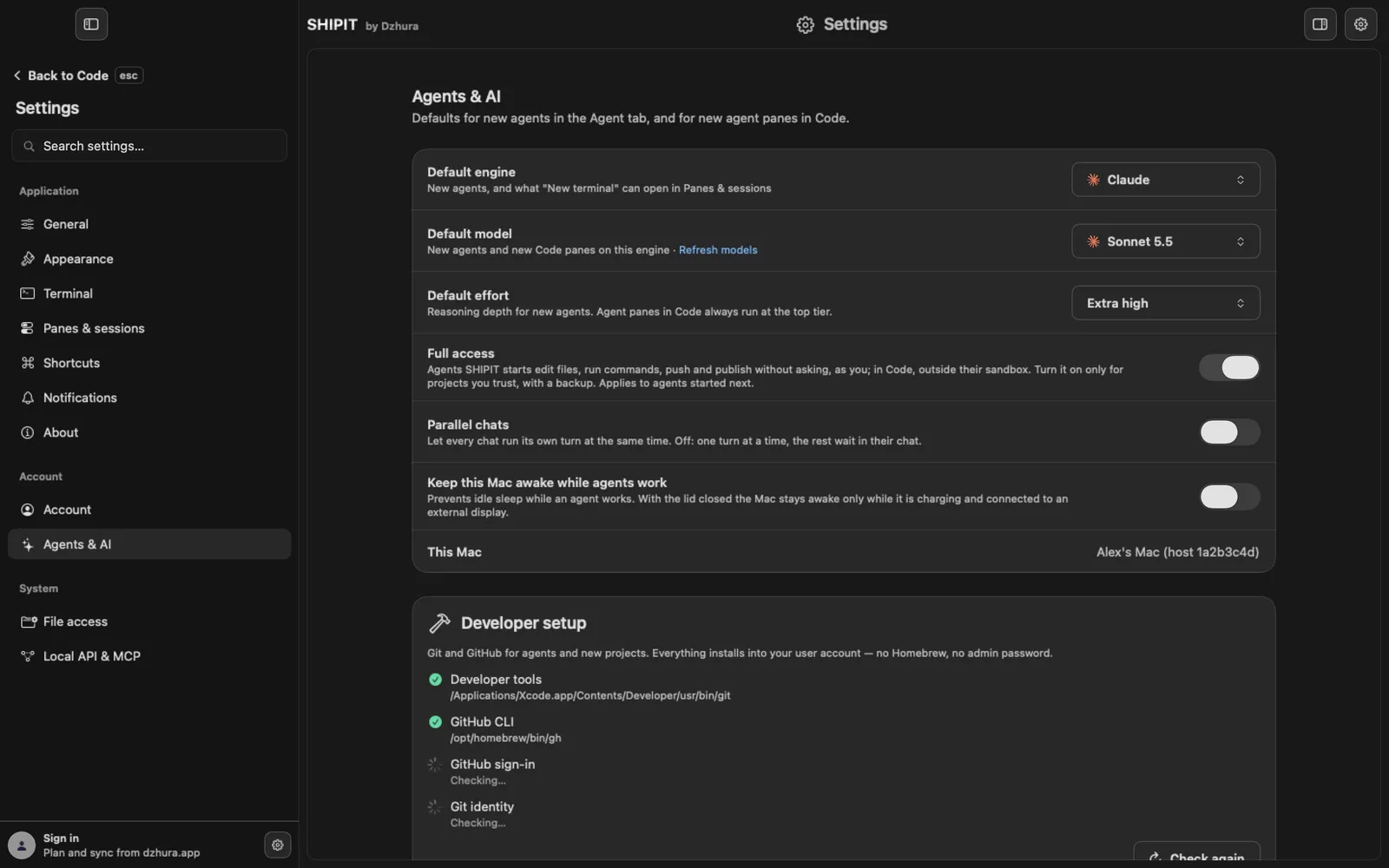
The gear at the top right opens Settings. They come in three groups: Application, Account and System. The level and the tabs are in General, agent defaults in Agents & AI, folder access in File access.
Press
escto go back. -
06Signing in
At the bottom left is Sign in: plan and sync from dzhura.app. This links SHIPIT to your account on the site.
Tips
- Cannot see a tab or a section? Check the level in Settings › General.
- Tips on the tabs can be hidden once you no longer need them.
Questions
Why is there no Start screen?
Pro has no Start. Change the level in Settings › General, under Experience.
How is Agent different from Code?
In Agent you describe a task in words and see the conversation. In Code you see the panes with the terminals where agents work.
Next
- Levels and tabs: Beginner, Intermediate, ProThe level decides how much SHIPIT shows at once. Nothing is locked: the level and the tabs change any time.
- Privacy and access: what SHIPIT sees and what agents may doYour work stays yours. Here is what SHIPIT sends, how to set the rules for agents and why macOS asks about folder access.