Your Dzhura account and your Macs
One Dzhura account works for the website and for SHIPIT. Sign in and SHIPIT knows your plan and name on each of your Macs.
-
01Find the sign-in

At the bottom of the sidebar there is Sign in with Plan and sync from dzhura.app under it. Click it and choose Sign in in the menu. The gear on the right opens Settings.
-
02Sign in with email and password
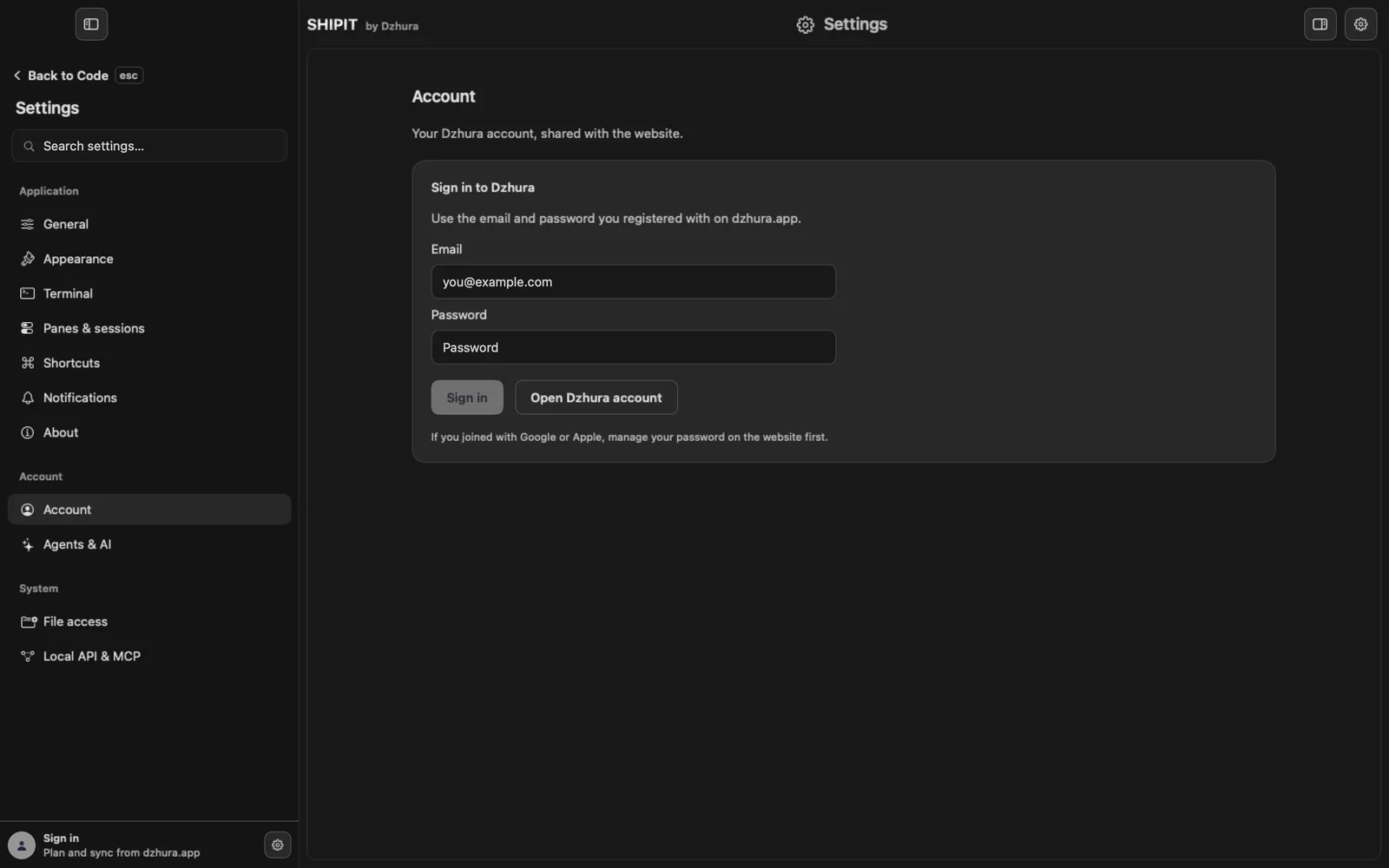
Settings → Account opens. In Sign in to Dzhura enter the email and password you registered with on dzhura.app and click Sign in.
-
03No account or no password
Open Dzhura account opens the website, where you can register.
If you joined with Google or Apple, set a password on the website first, then sign in to SHIPIT.
-
04What the account gives you
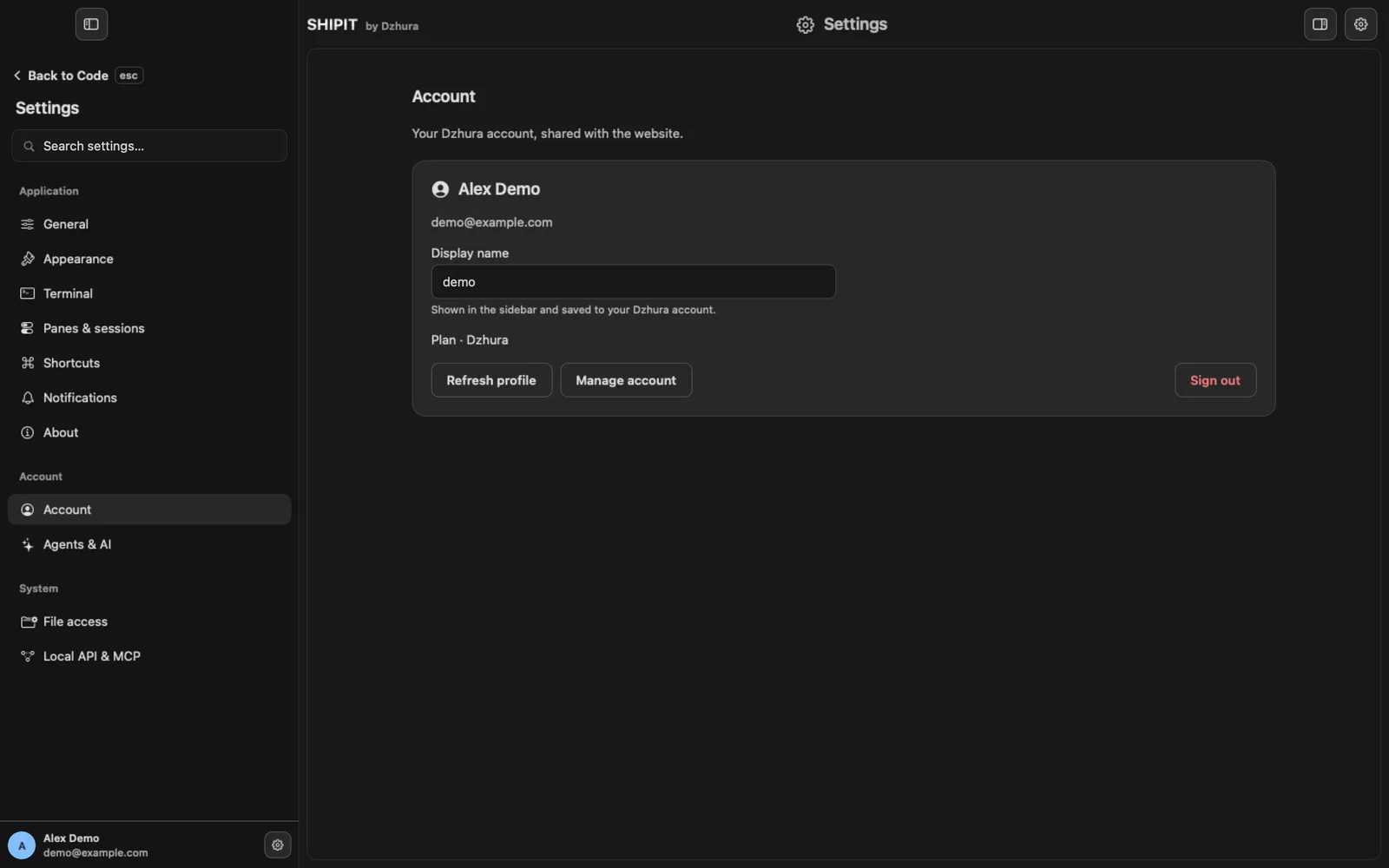
After you sign in, the Account page shows your name, email and the Plan line. The Display name you set here is shown in the sidebar and saved to your Dzhura account.
Manage account opens your account on the website, Refresh profile pulls changes from it. If your plan does not include SHIPIT, SHIPIT keeps working either way.
-
05How many Macs
The licence lets you install SHIPIT on up to 3 Macs that you own or control, for yourself or your own business. The licence is personal: other people need their own. Details are in the SHIPIT Terms, section 4.1.
Sign in with the same account on each Mac.
Tips
- SHIPIT does not keep your account password in the field: it clears after you sign in.
- Offline, SHIPIT shows your saved profile until the connection is back.
Questions
The sidebar says my session expired.
Click Sign in again. Your email is already filled in, so you only type the password.
How do I sign out?
Settings → Account → Sign out.
Can the account see my chats and code?
No. Agents, chats and workspaces stay on this Mac. The account holds your profile and plan.