Bookmarks: a workspace the way you left it
A bookmark remembers a workspace: panes, layout, colour and conversations. It keeps working even after the workspace itself is closed.
-
01Save a bookmark
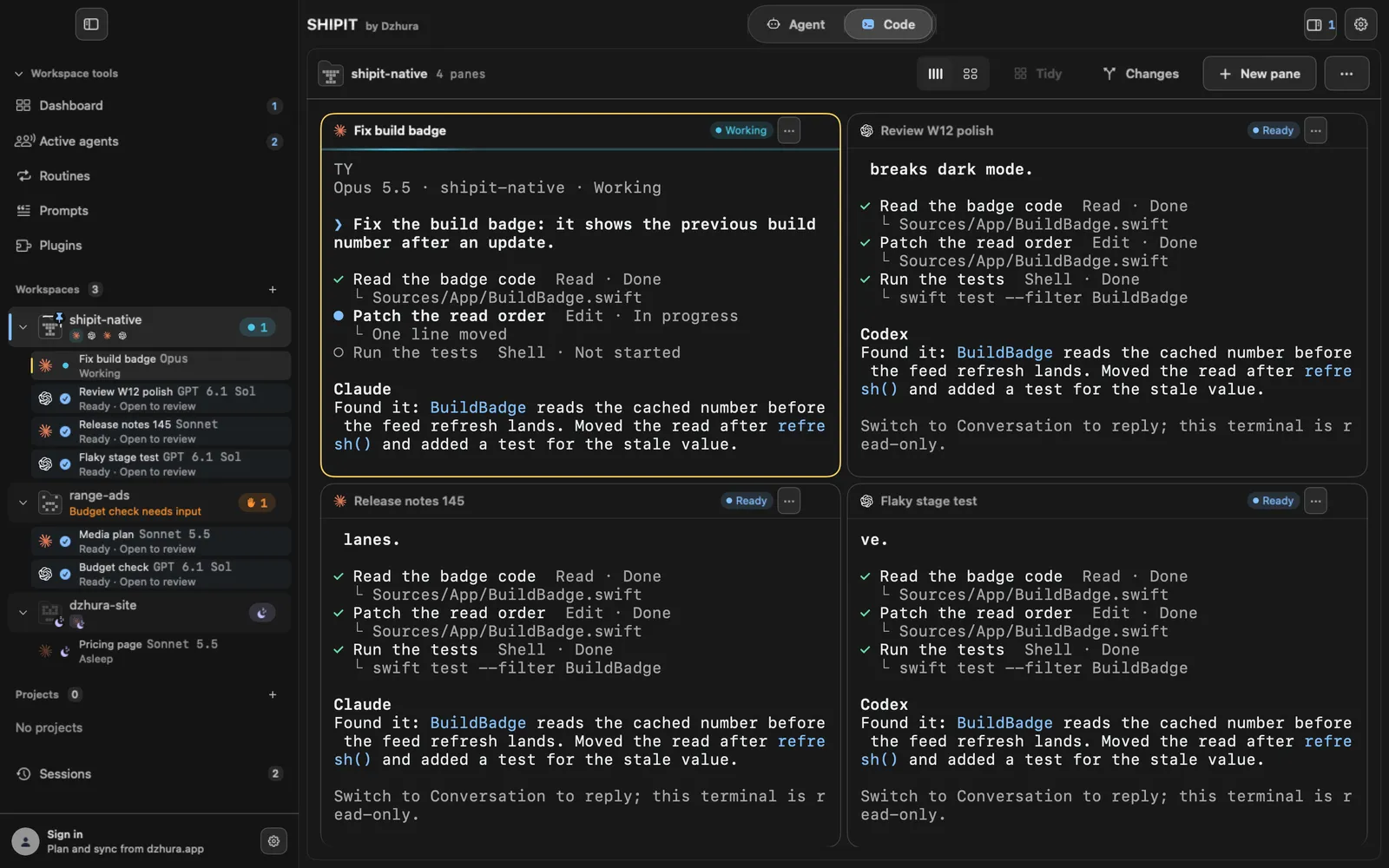
Open the workspace menu (the … at the right above the panes, or the workspace's menu in the sidebar) and choose Bookmark.
-
02The Bookmarks section
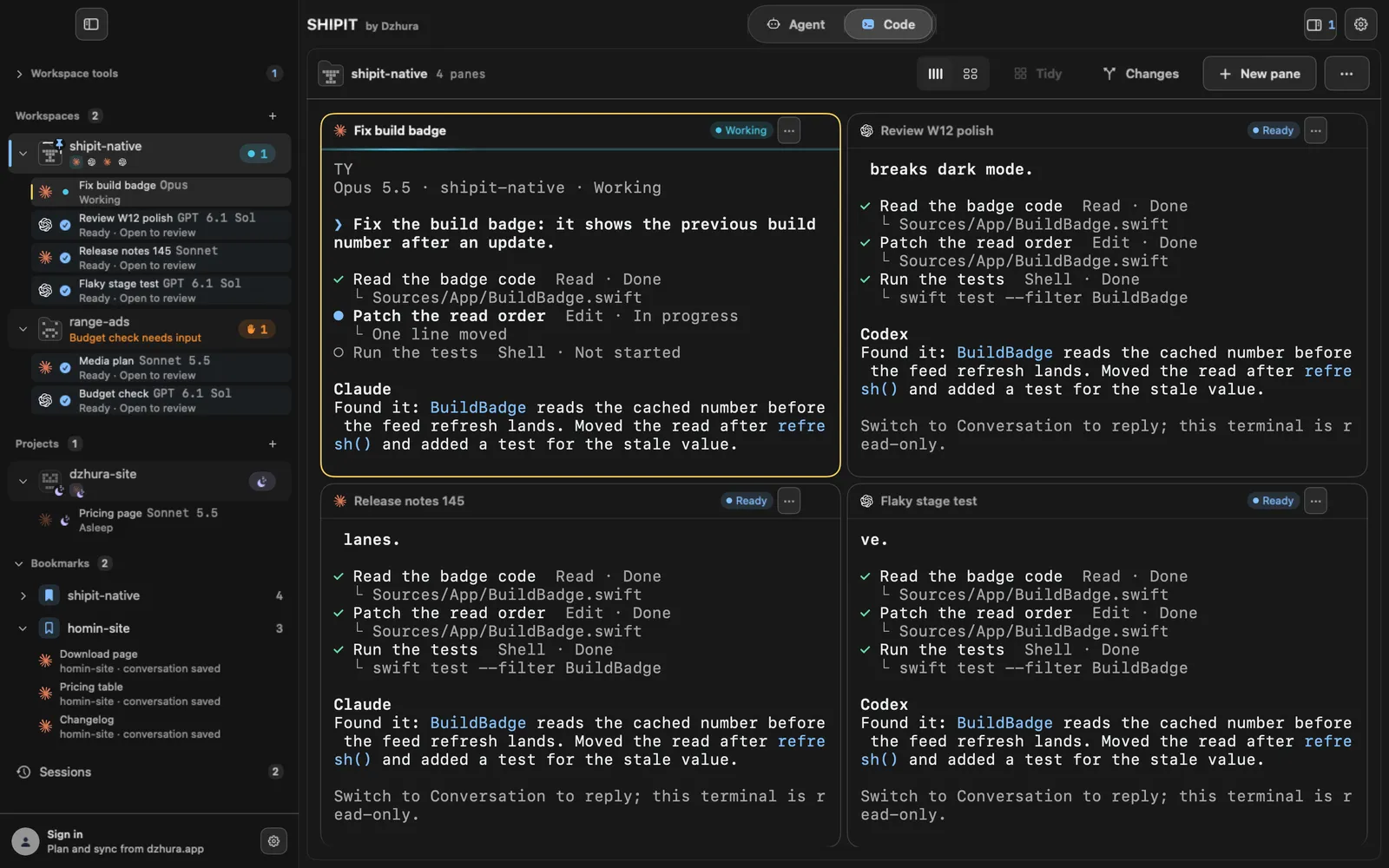
After the first bookmark, the Code sidebar gets a Bookmarks section above the Sessions row.
-
03Open a bookmark
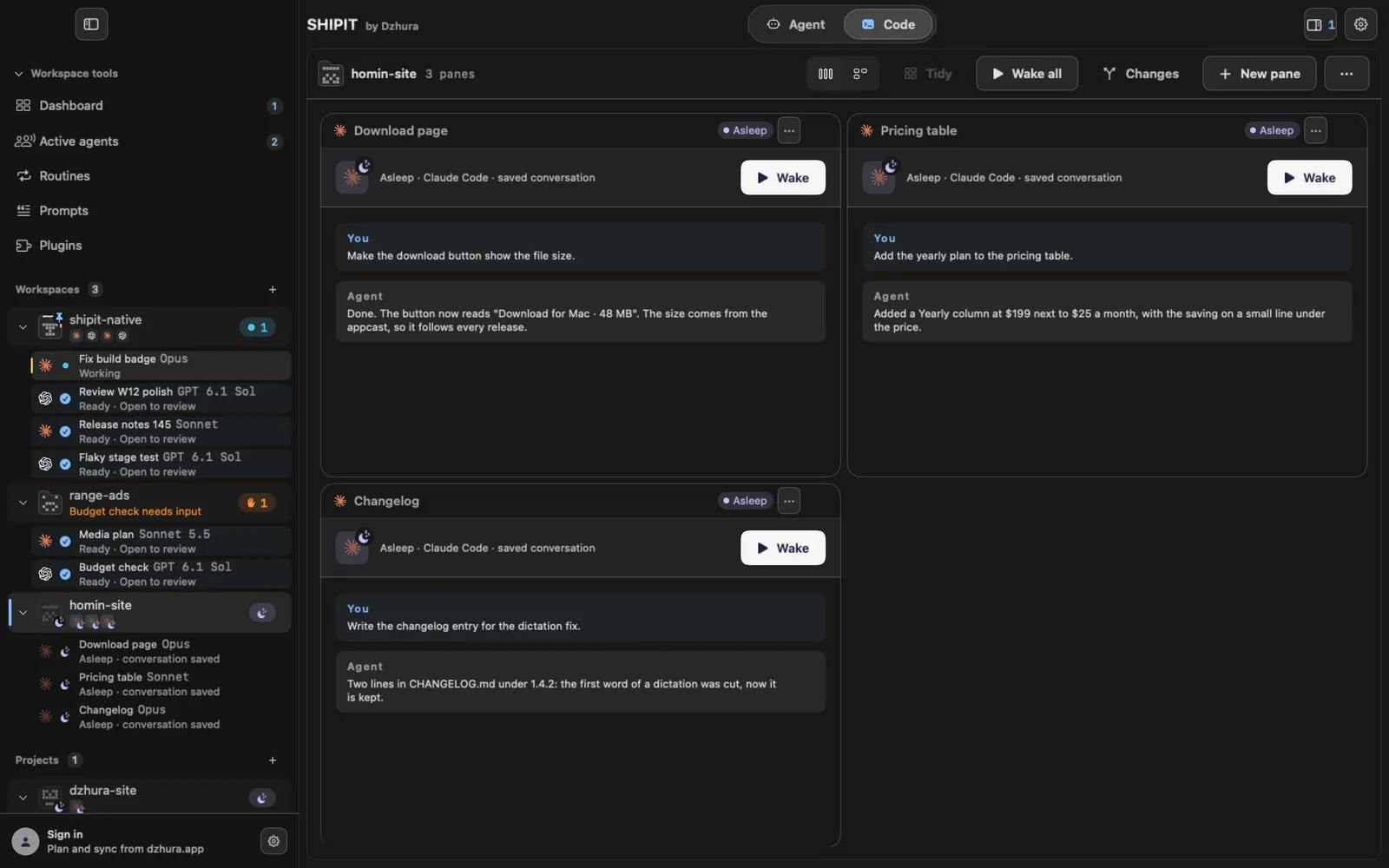
Click the bookmark. If the workspace is open, SHIPIT just goes to it. If it was closed, it comes back with the same panes, layout and colour, but asleep: each pane shows its conversation and a Wake button. Nothing starts until you press it.
TipKeep ten projects at hand without keeping ten agents running.
-
04Go straight to one pane
The arrow left of a bookmark (Show panes) lists its panes: title, folder and whether the conversation is saved. Click a pane and SHIPIT opens the bookmark right on it.
-
05Update or remove
When the workspace has changed, choose the same menu item again; it now reads Update bookmark and saves the new state instead of a second copy. Right-click a bookmark and pick Remove bookmark to drop only the bookmark: the workspace and the files stay.
Tips
- A bookmark keeps no files, only the folder path. If the folder was deleted or moved, the bookmark cannot open it.
- What Wake does is covered in the guide on sleeping panes.
Questions
How is a bookmark different from Sessions?
Sessions collects everything closed on its own. A bookmark is one you set on a workspace you want to return to, and it stays until you remove it.
Will the agents start when I open a bookmark?
No. The panes open asleep, and you start each one with Wake.
Next
- Sleeping panes: free the Mac, keep the conversationSleep stops the agent's process, but the pane and the conversation stay where they are. One button brings the agent back to the same conversation.
- Sessions: bring terminals back after a relaunchA closed terminal does not disappear. After a relaunch SHIPIT asks what to bring back, and the rest waits in Sessions.