Sleeping panes: free the Mac, keep the conversation
Sleep stops the agent's process, but the pane and the conversation stay where they are. One button brings the agent back to the same conversation.
-
01What sleep does
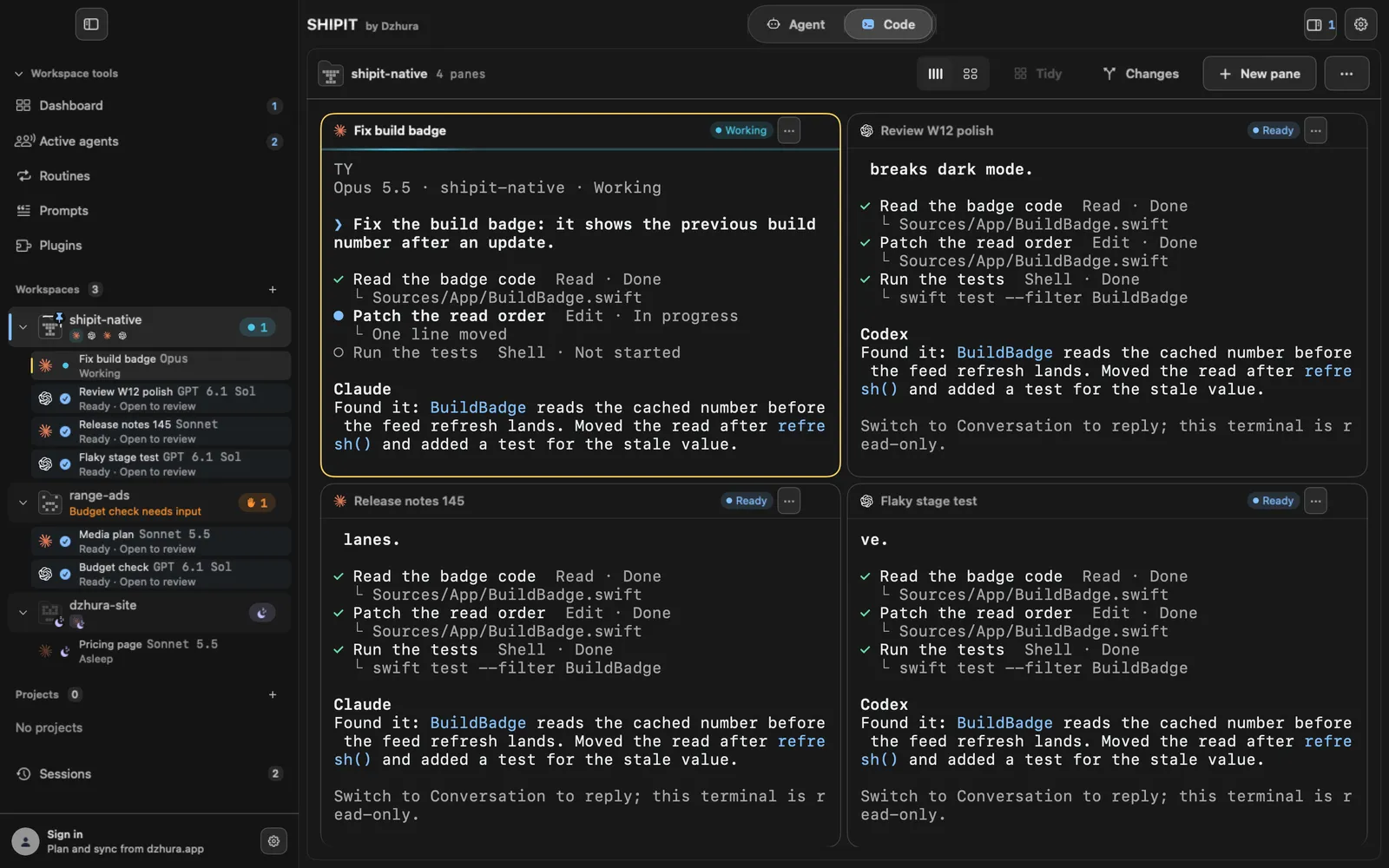
A sleeping pane stops its process, so it no longer takes memory. Its place in the layout and its conversation stay. In the sidebar such a pane reads Asleep, and a workspace where every pane sleeps carries a moon.
-
02Put one pane to sleep
Open the pane menu (the … in its header, or a right-click) and choose Sleep.
The item is off while the agent is working, is waiting for your answer, runs Auto, or has not saved its conversation yet. In the last case try again in a few seconds.
TipBrowser and document panes never sleep: they hold no process.
-
03Put a whole workspace to sleep
The workspace menu (the … at the right above the panes) has Sleep workspace. Every pane that can sleep does, the rest keep running.
-
04Wake a pane
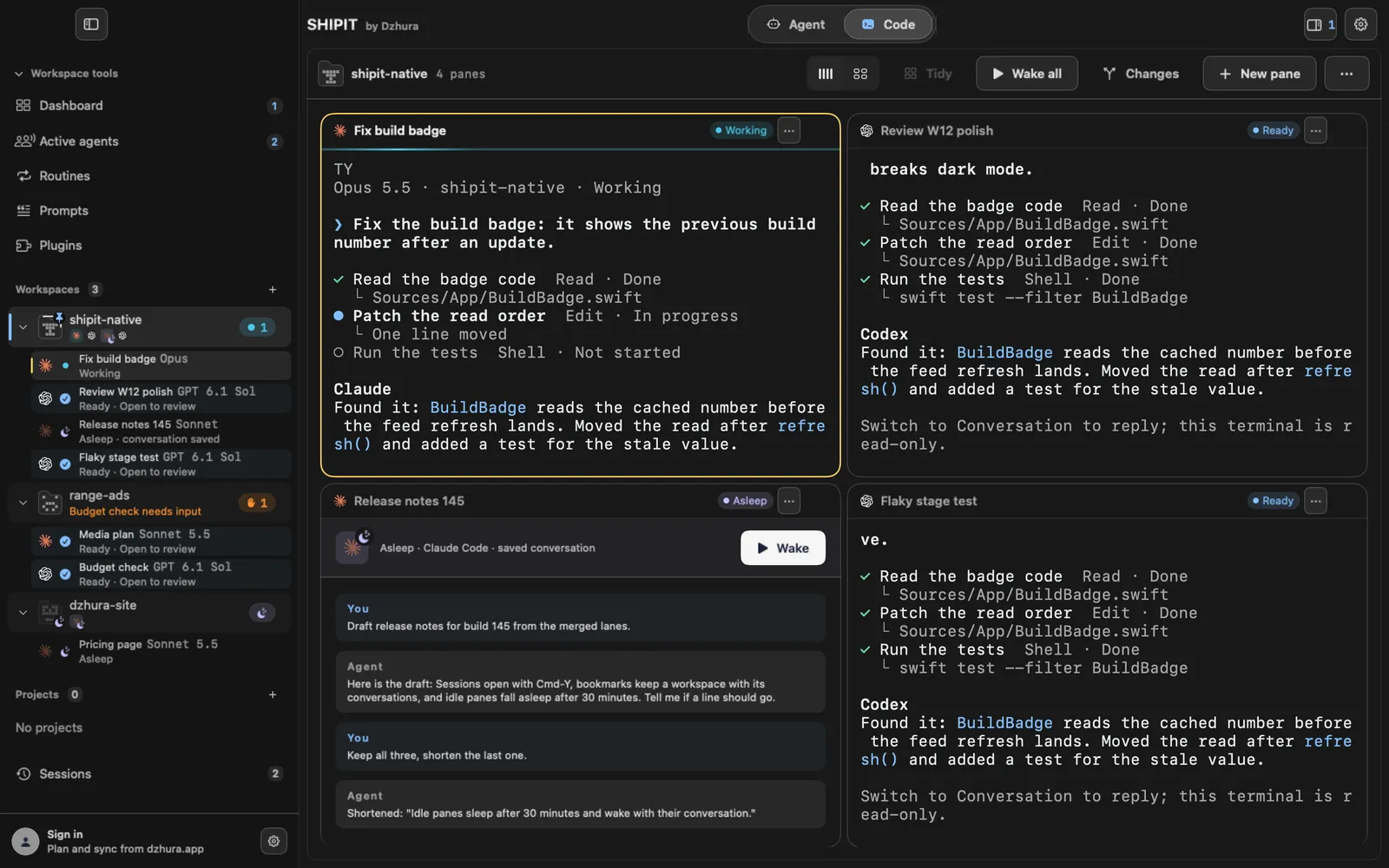
A sleeping pane shows its saved conversation to read and a Wake button: the agent starts on the same conversation. Without a saved conversation the button says Start and launches the agent in the pane's folder.
When a workspace has sleeping panes, Wake all appears in the toolbar. Panes wake one after another; a second click or Esc stops the rest.
-
05Automatic sleep
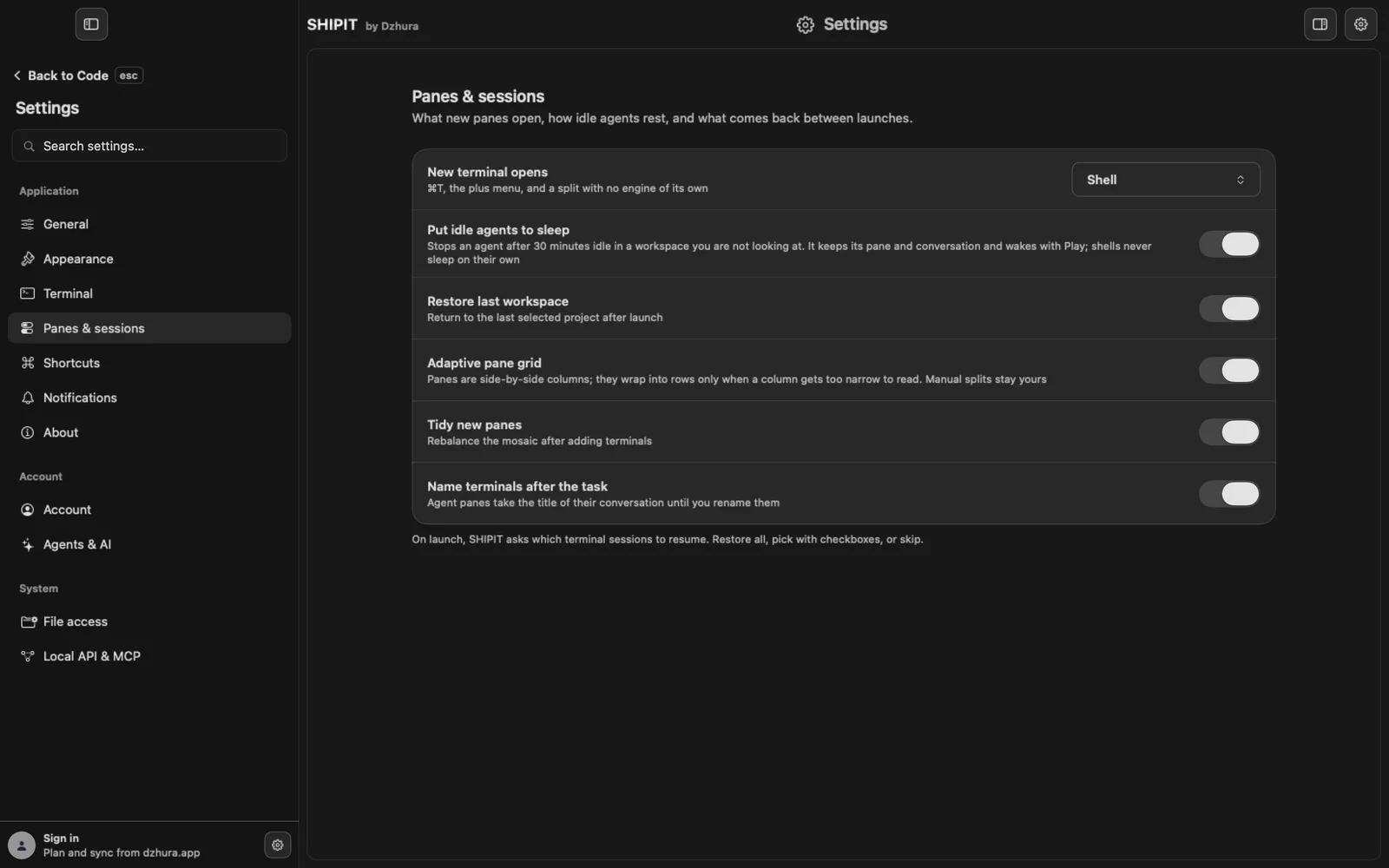
In
Settings › Panes & sessions, Sleep idle agents: Never (the default), After 15 min, After 30 min, After 1 hour or After 3 hours.Only an agent that is doing nothing, has no Auto, has a saved conversation and sits in a workspace you are not looking at goes to sleep. A shell never sleeps on its own: a quiet shell may be running a server.
Tips
- Sleeping panes stay asleep after a SHIPIT relaunch; the Restore sessions window leaves them alone.
- Many agents open and the Mac feels slow? Put the workspaces you are not using to sleep.
Questions
Will the agent forget what it was doing?
No. Sleep keeps the conversation, and Wake continues exactly that one.
Why is Sleep greyed out?
The agent is working, waiting for an answer, running Auto, or has not saved its conversation yet. Wait for a pause.
Next
- Sessions: bring terminals back after a relaunchA closed terminal does not disappear. After a relaunch SHIPIT asks what to bring back, and the rest waits in Sessions.
- Bookmarks: a workspace the way you left itA bookmark remembers a workspace: panes, layout, colour and conversations. It keeps working even after the workspace itself is closed.