The Codex pane
Codex is a coding agent from OpenAI. You describe the task, and it works in the project folder.
-
01Add Codex
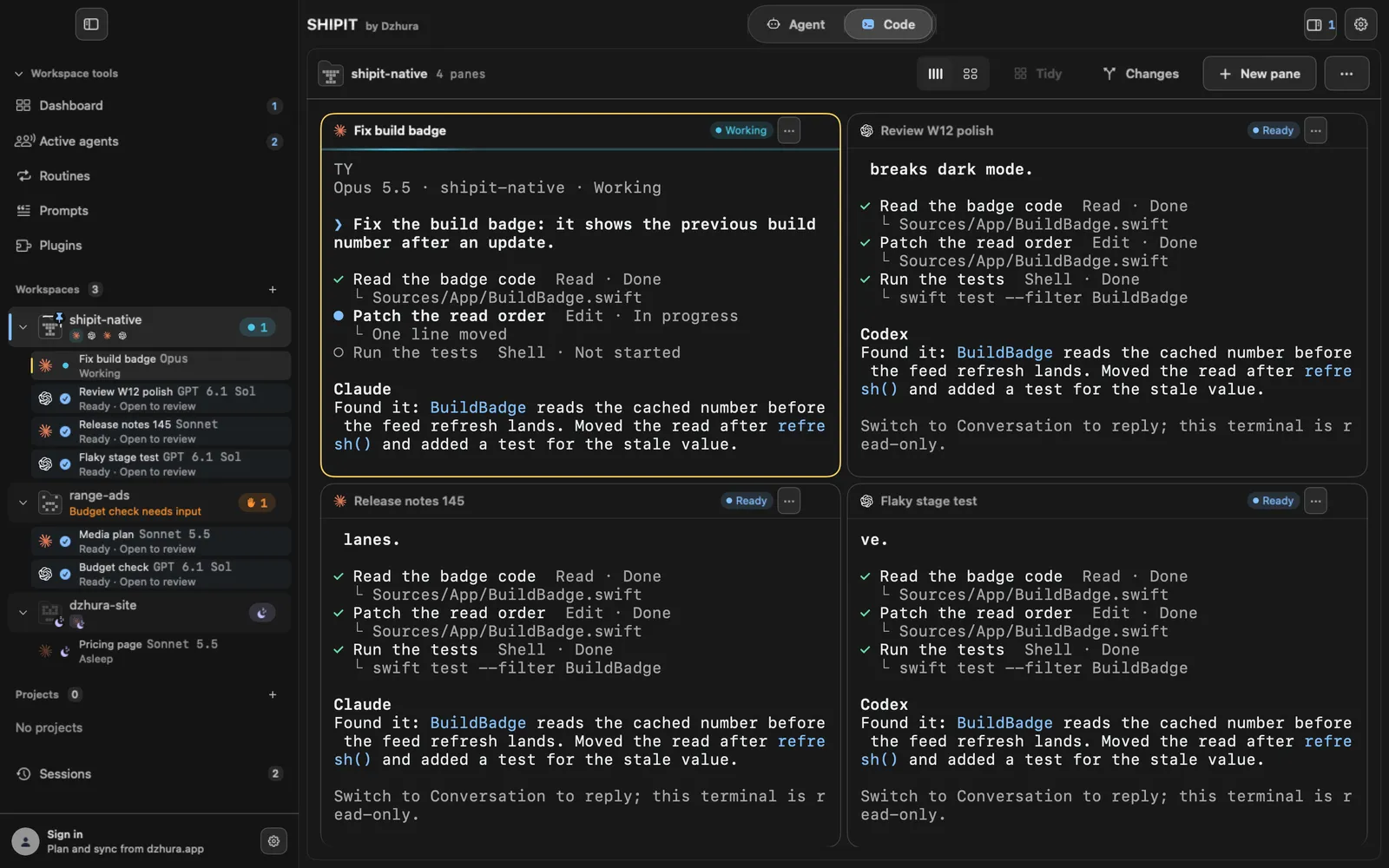
Click New pane and pick Codex from the agents. If Codex is not installed, the pane opens on an install card.
-
02Queue while it works
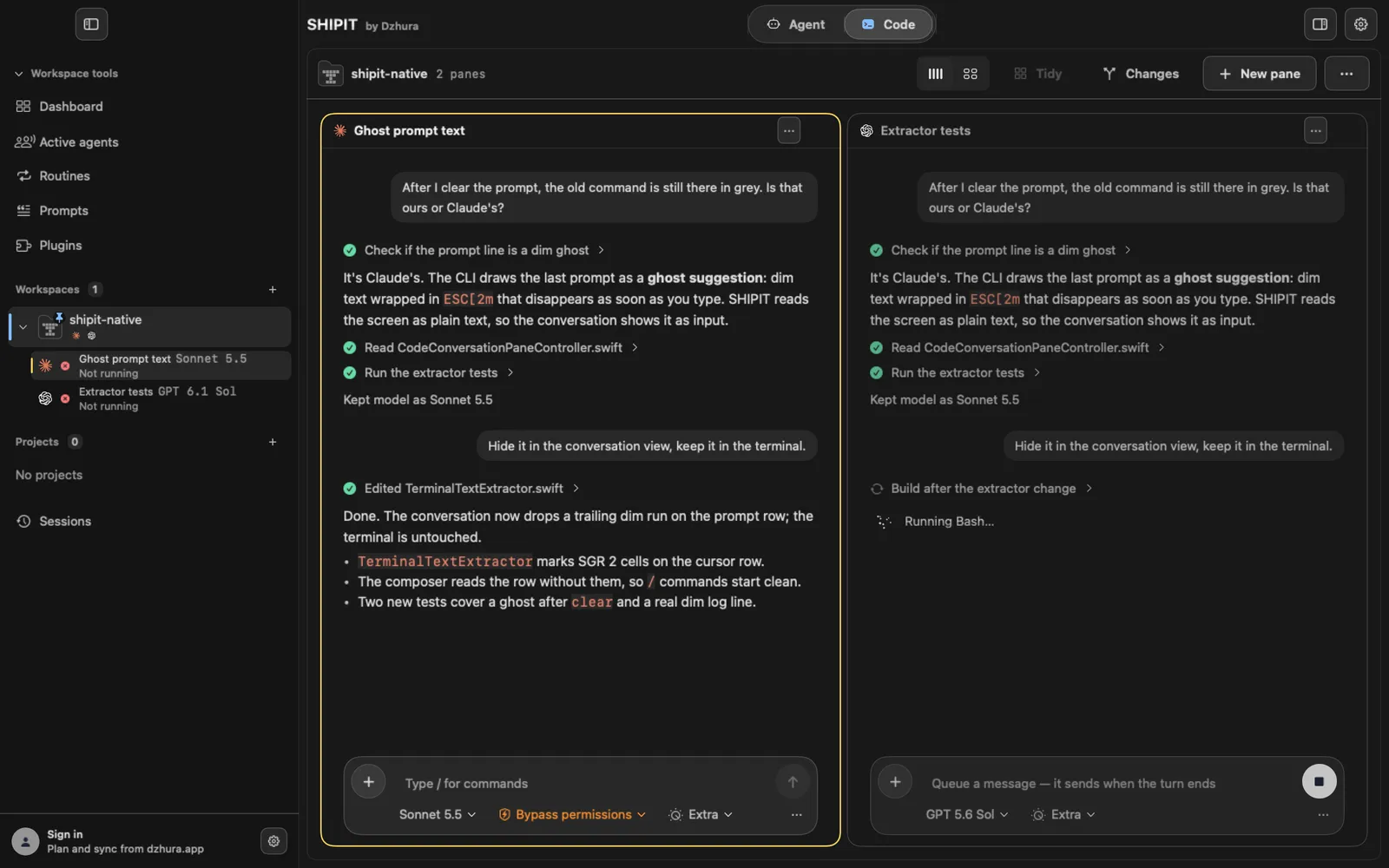
While Codex runs a turn, the field says Queue a message — it sends when the turn ends. Write the next task without waiting.
-
03Stop a turn
The Stop button to the right of the field interrupts the current turn. Then you can give a new task.
-
04Choose a model
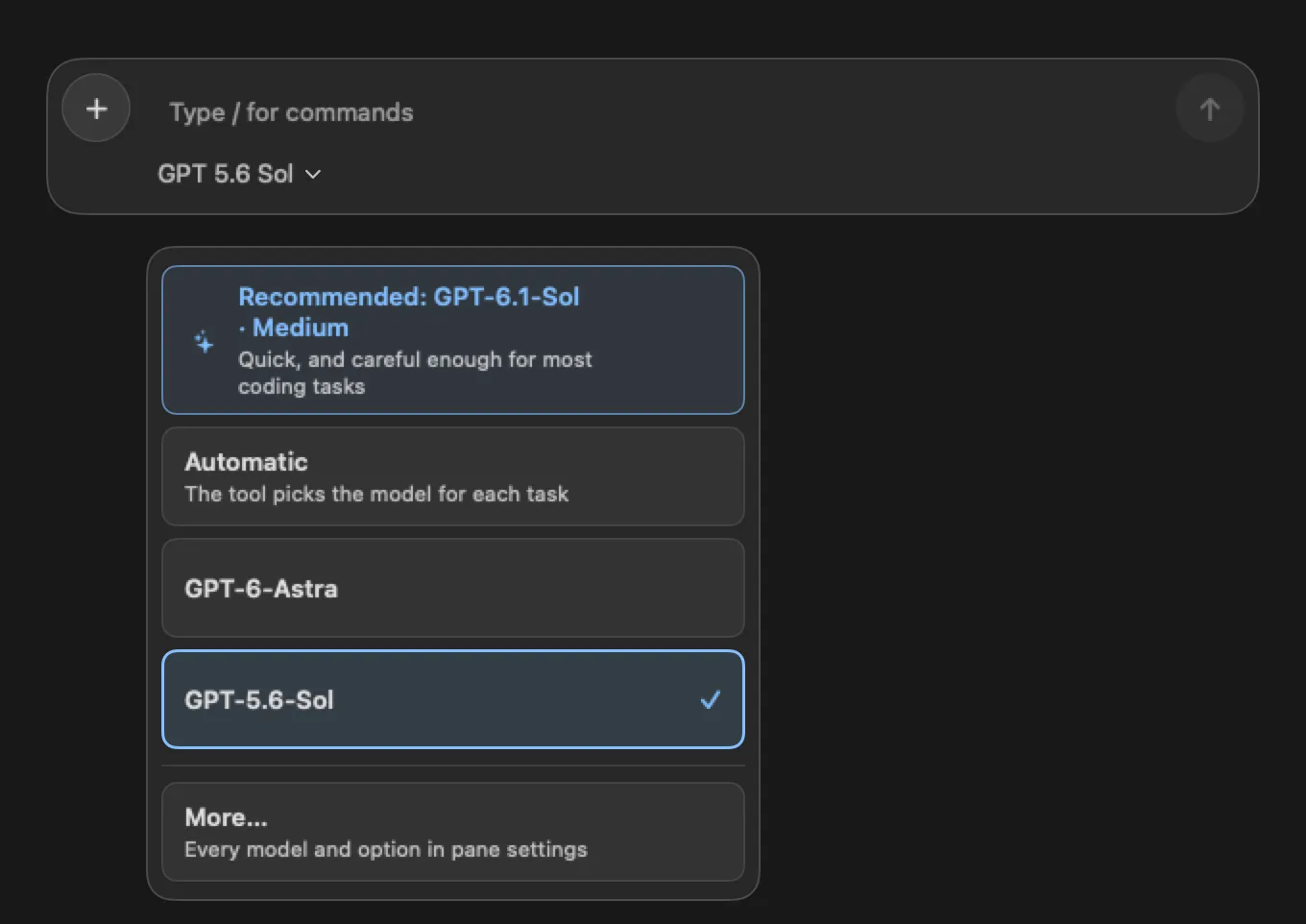
The model chip opens cards. The card marked Recommended suits most tasks. Automatic leaves the choice to the agent, and More… shows every model in pane settings.
-
05Effort
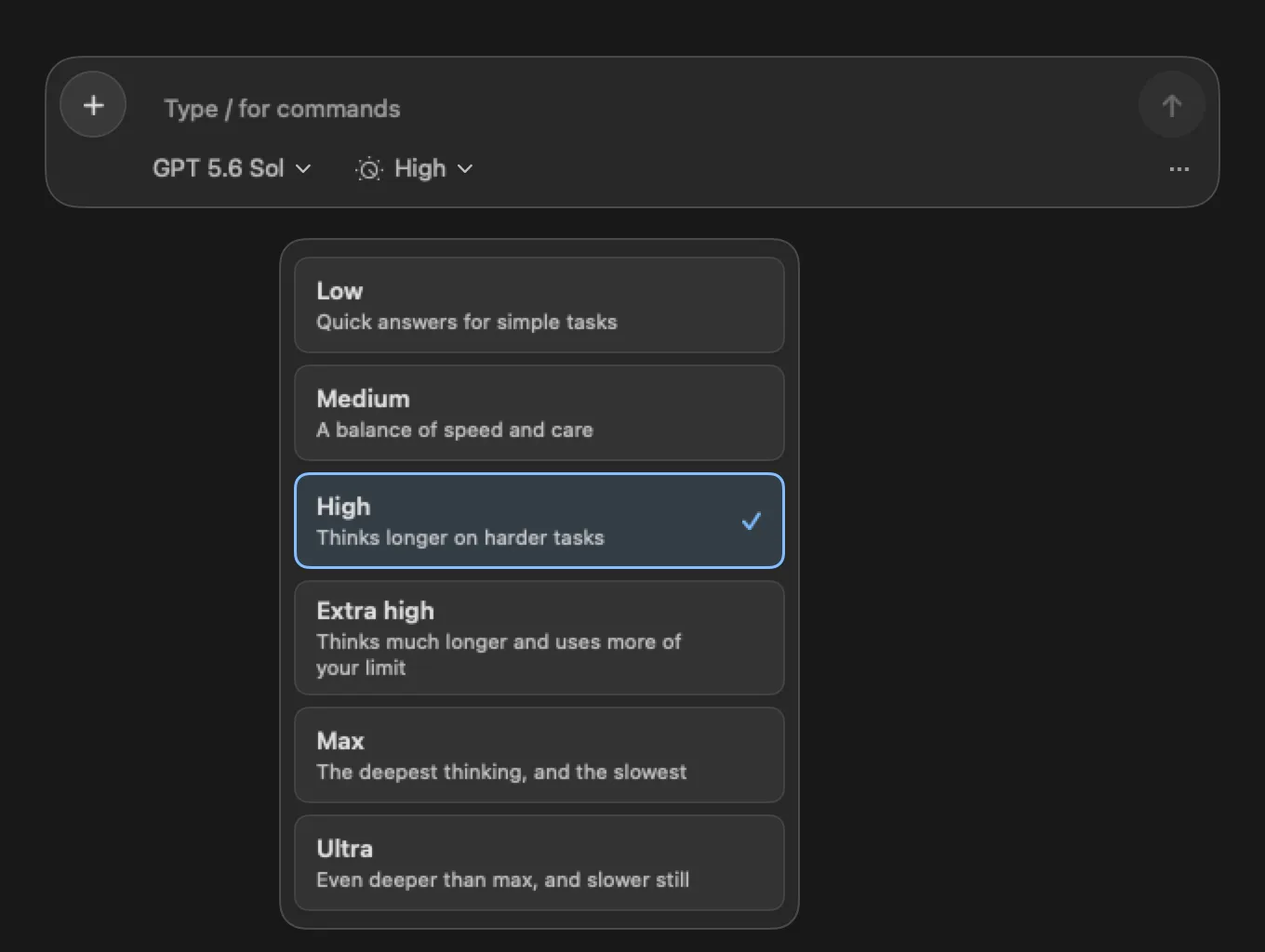
The chip next to it sets the effort: how much Codex thinks over each step. Higher effort is slower and more careful.
-
06Check the changes
When Codex is done, click Changes at the top. It shows the Git status of the active pane: which files changed.
Tips
- Give Codex one task and Claude another in the next pane: they work in parallel.
- A queued message does not interrupt the current turn.
Questions
How is Codex different from Claude Code?
They come from different companies: Codex from OpenAI, Claude Code from Anthropic. In SHIPIT both run in panes with a message field.
What happens to a queued message if I stop the turn?
Check the field after stopping. If the message is still there, send it again.
Next
- The Claude Code paneClaude Code works in your project folder: it reads code, edits files and runs commands. You steer it from the field at the bottom of the pane.
- Pane settingsEvery pane has its own settings: what runs in it, in which folder and with which model. Changes take effect after the pane restarts.
- Pane layoutsSeveral panes on one screen can be laid out the way you like, and put back in order just as quickly.