The Claude Code pane
Claude Code works in your project folder: it reads code, edits files and runs commands. You steer it from the field at the bottom of the pane.
-
01Add Claude
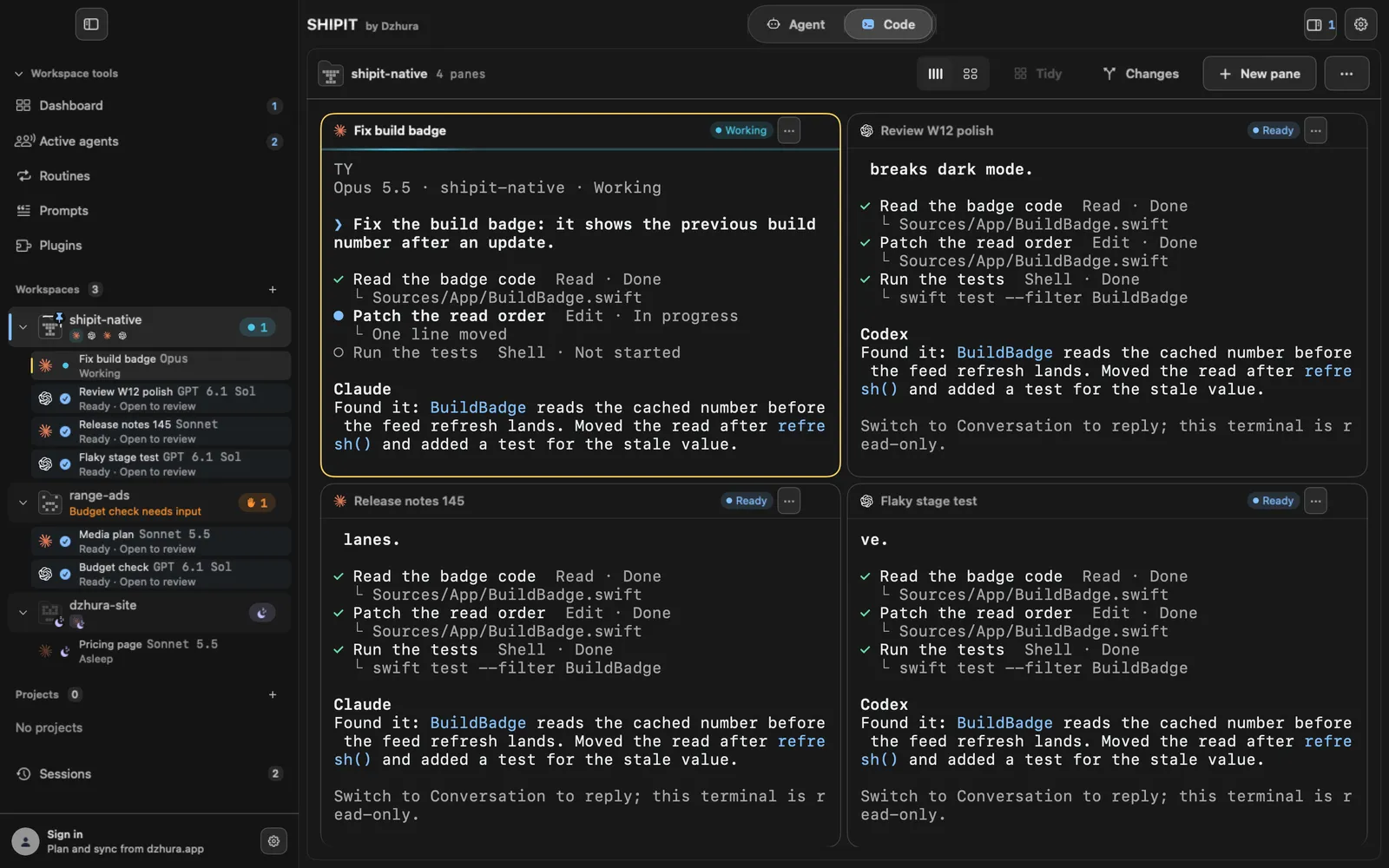
Click New pane and pick Claude from the agents. The pane opens in the workspace folder.
If Claude Code is not installed yet, the row says so and the pane shows an install card.
-
02Give it a task
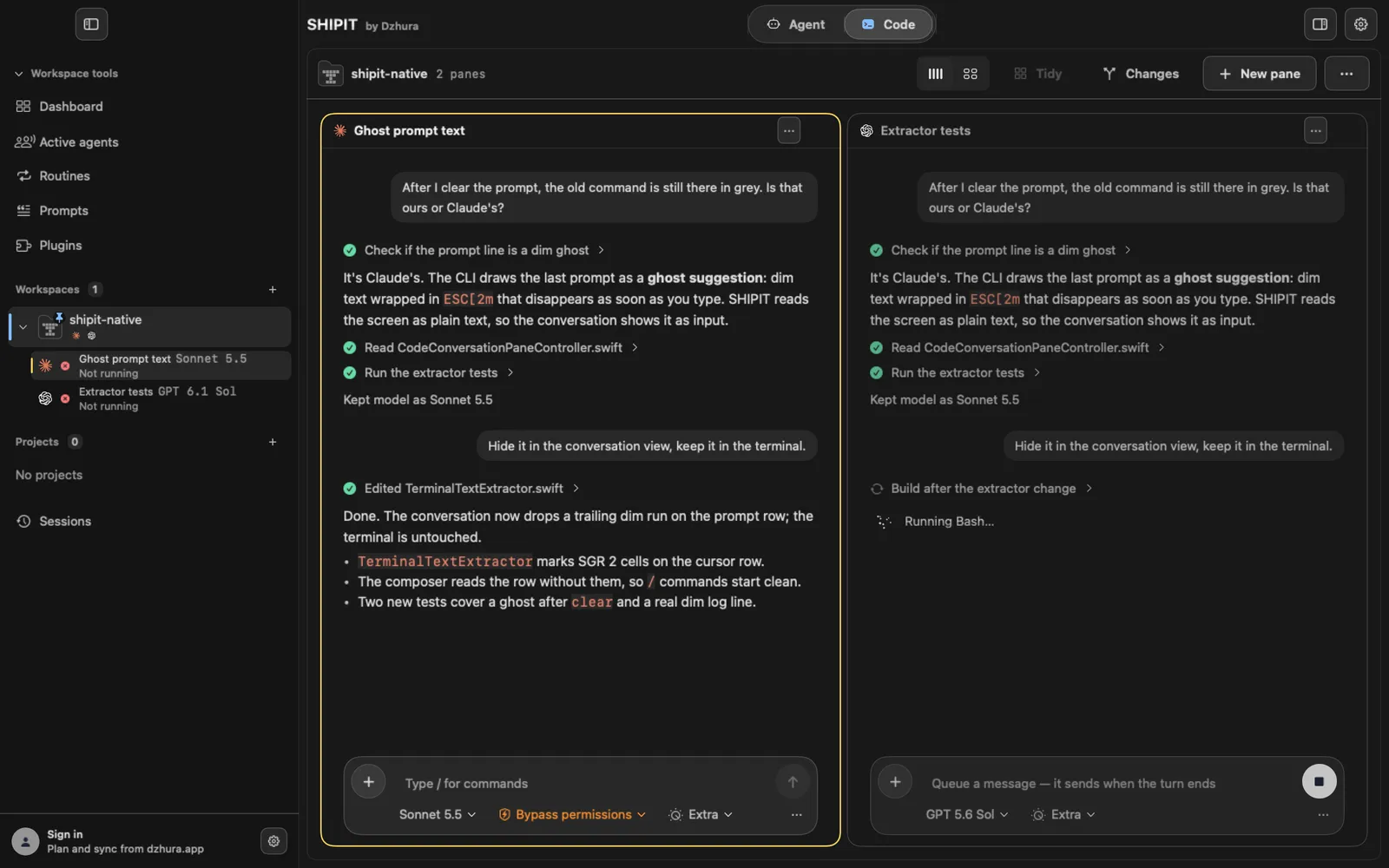
Write what to do in the Type / for commands field and send it. A slash opens commands, and the plus, Add files, attaches files.
-
03Choose a mode
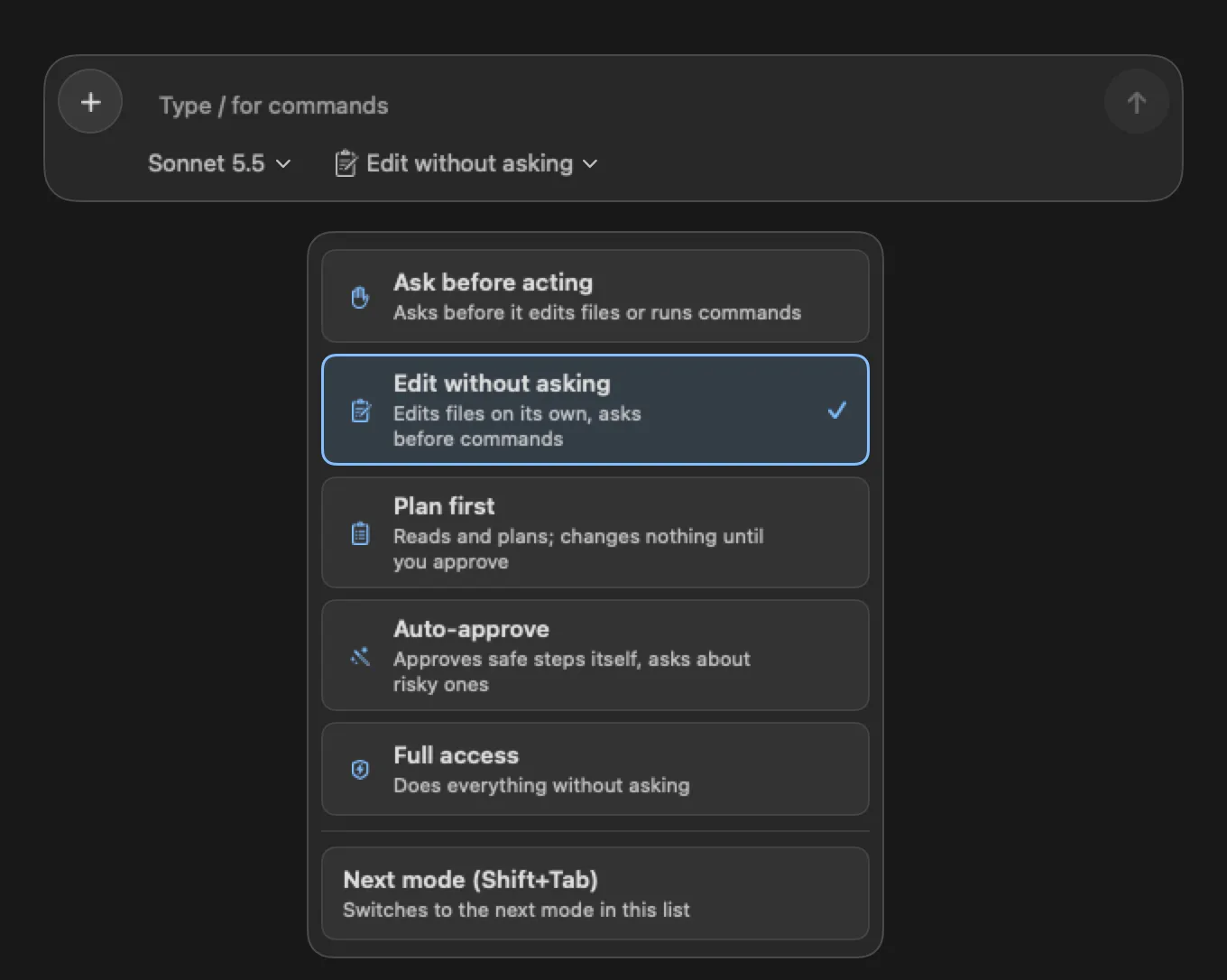
The mode chip under the field opens cards: Ask before acting, Edit without asking, Plan first, Auto-approve and Full access. Next mode (Shift+Tab) cycles through them.
Start with Ask before acting: Claude asks before it does anything.
-
04Model and effort
The model chip shows who answers in this session. The cards offer Automatic and a few models, and More… leads to every model in pane settings.
The chip next to it sets the effort: how much the agent thinks before it acts. Higher effort is slower and more careful.
-
05Answer its questions
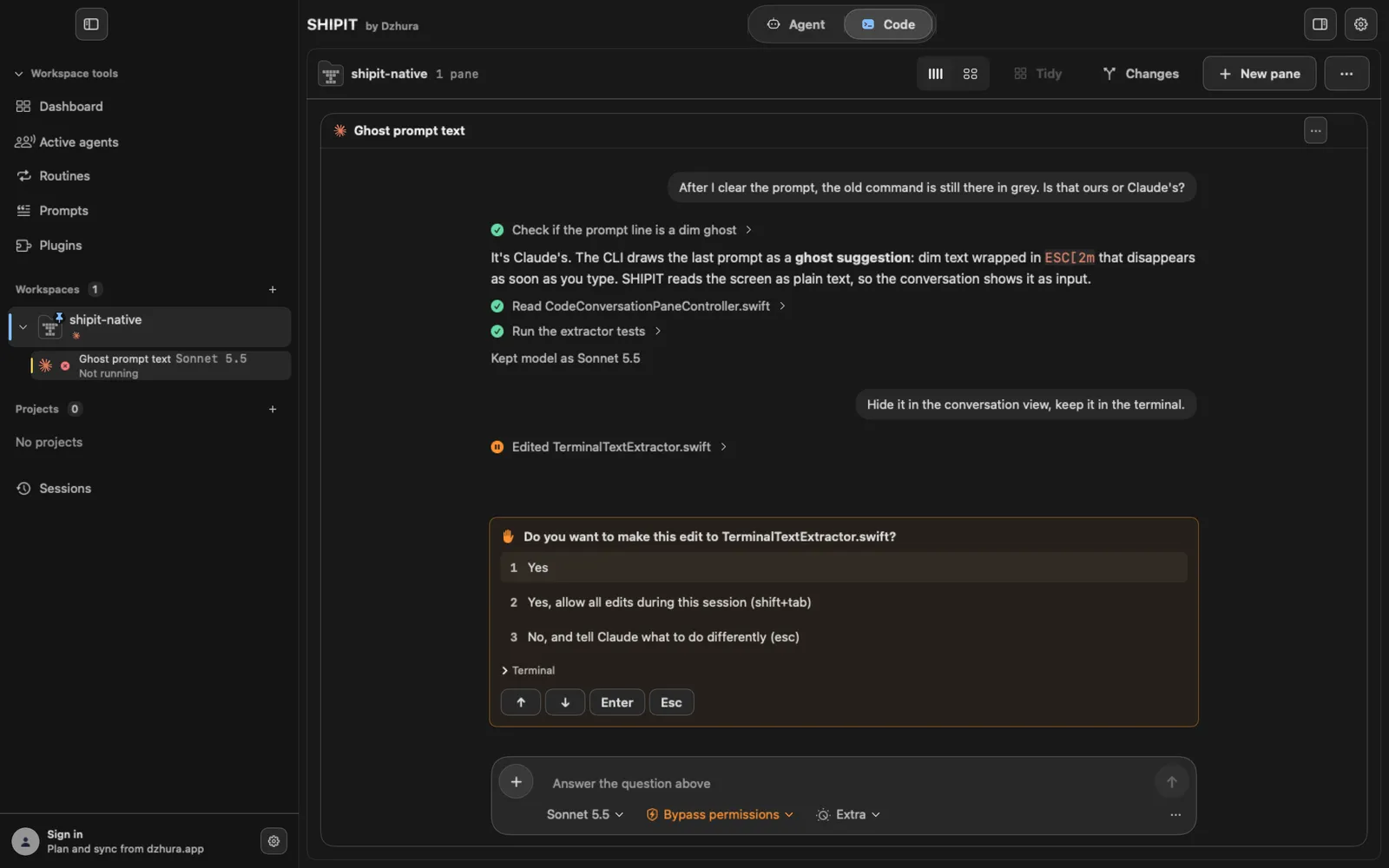
When Claude asks, the pane shows the options and the field says Answer the question above. Pick an option with the ↑ ↓ buttons and confirm with Enter, Esc cancels.
In the sidebar, a hand marks that row so you do not miss the question.
-
06The field menu
The three dots in the field open Model and settings…, Show terminal in conversation and Show usage.
Tips
- Write the task as you would explain it to a colleague: what to do, where, and how to check it.
- Shift+Tab switches the mode without opening the cards.
- You can change the model mid-work, the chip under the field applies to this session.
Questions
What does the hand in the sidebar mean?
The agent is waiting for your answer. Open the pane and pick an option.
Which mode should I start with?
Ask before acting. Once you are used to it, you can give the agent more room.
Next
- The Codex paneCodex is a coding agent from OpenAI. You describe the task, and it works in the project folder.
- Pane settingsEvery pane has its own settings: what runs in it, in which folder and with which model. Changes take effect after the pane restarts.
- The New pane menuOne menu opens any pane: a terminal, a coding agent or a browser. You see where it lands before you click.