First launch: setup in 5 steps
Five short steps, after which SHIPIT knows your level, your language and the rules for agents, and you have a first project under way.
-
01Start: level, tabs and language
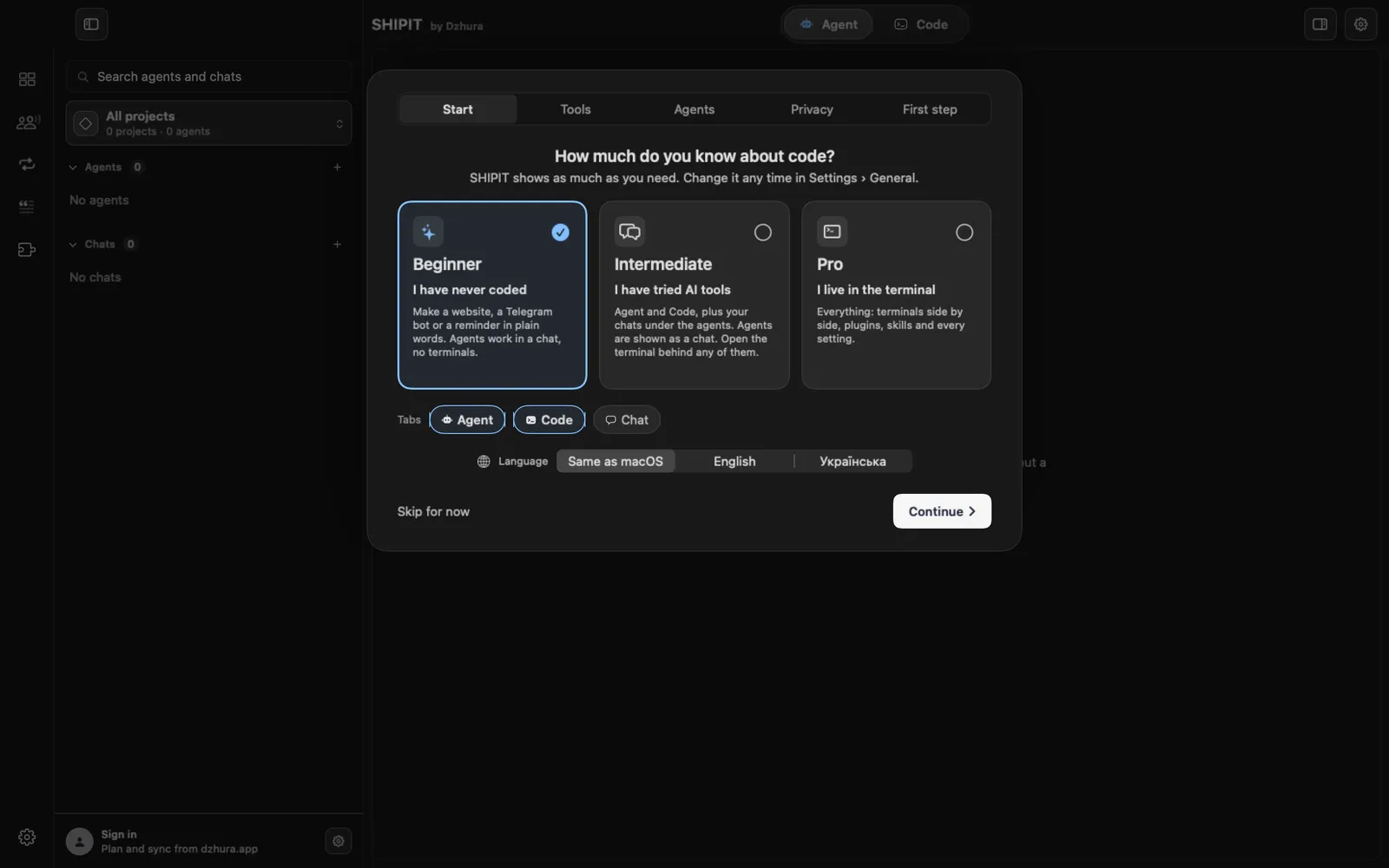
SHIPIT asks how much you know about code. Pick Beginner, Intermediate or Pro. The chips under the cards show which tabs the level gives you. Chat is not a tab of its own here: it is a section inside the Agent tab.
Below, pick the language: Same as macOS, English or Українська. Then click Continue.
TipYou can change the level any time in Settings › General.
-
02Tools: Git and GitHub
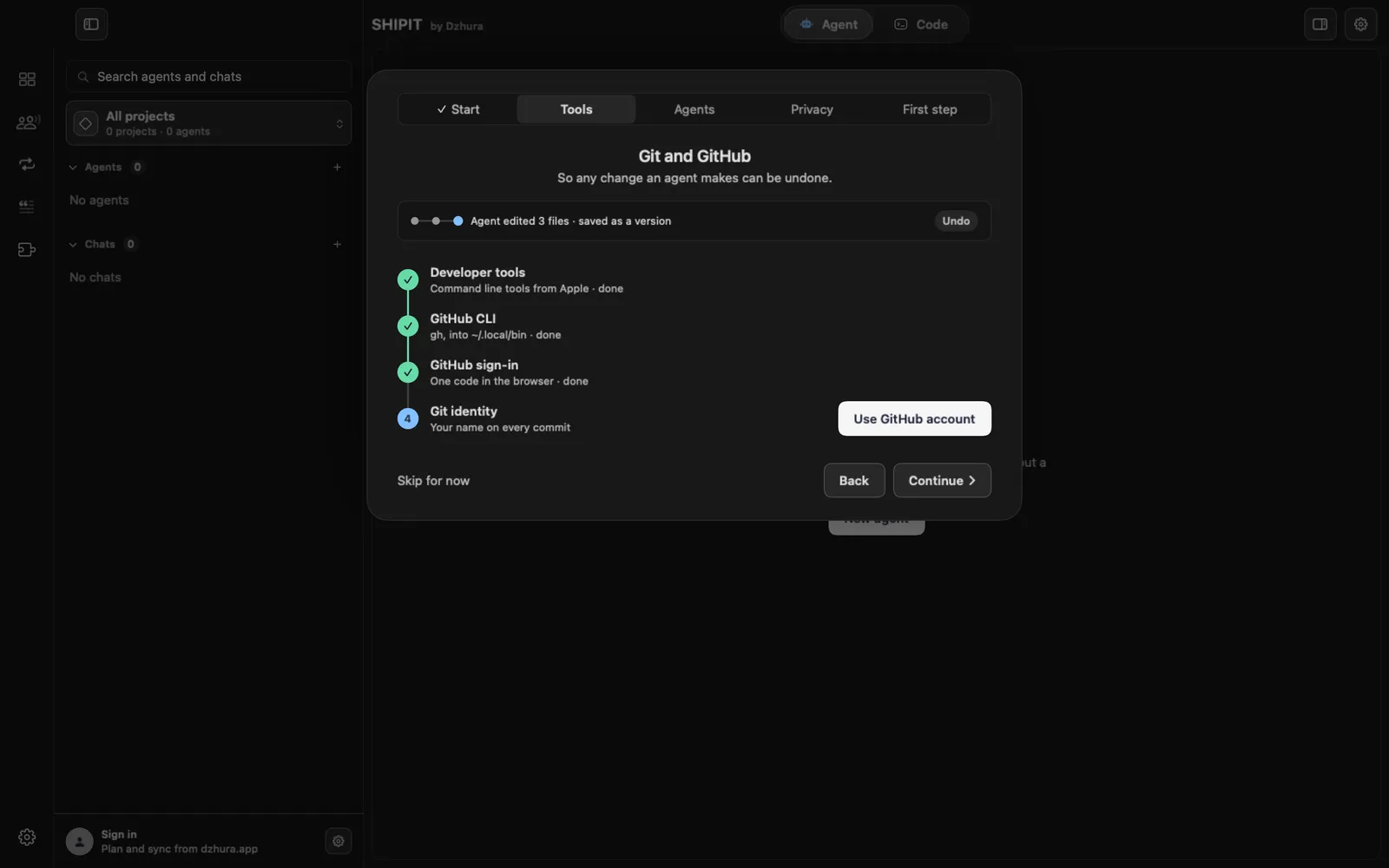
The Git and GitHub step checks four things: Developer tools, GitHub CLI, GitHub sign-in and Git identity. Git keeps every change an agent makes as a version, so it can be undone.
Continue always works, even if something is not ready yet. You can finish it later in
Settings › Agents & AI, under Developer setup. -
03Agents: connect your assistant
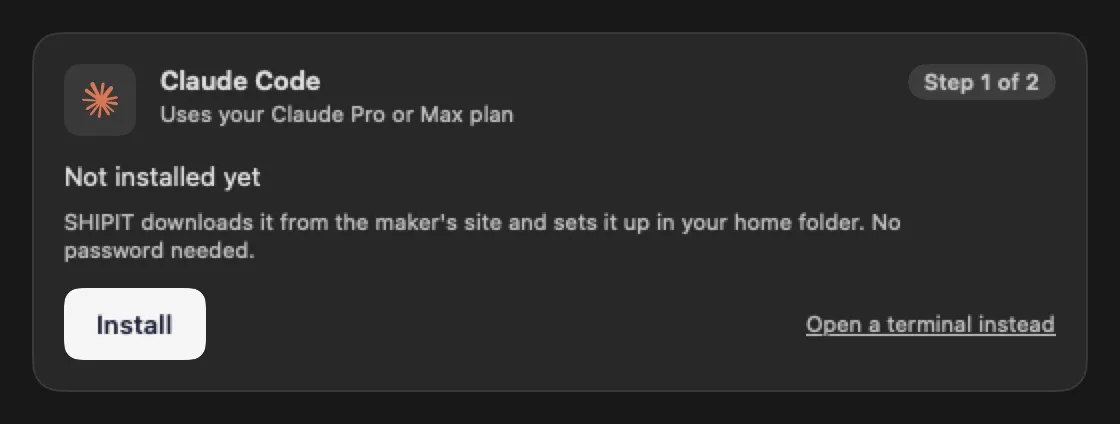
On the Beginner and Intermediate levels this step is called Connect your assistant. The card shows whether the assistant is already on your Mac. If not, click Install, and the card then walks you through sign-in.
Not ready now? Continue without an agent leaves this step for later.
-
04Privacy: read and agree
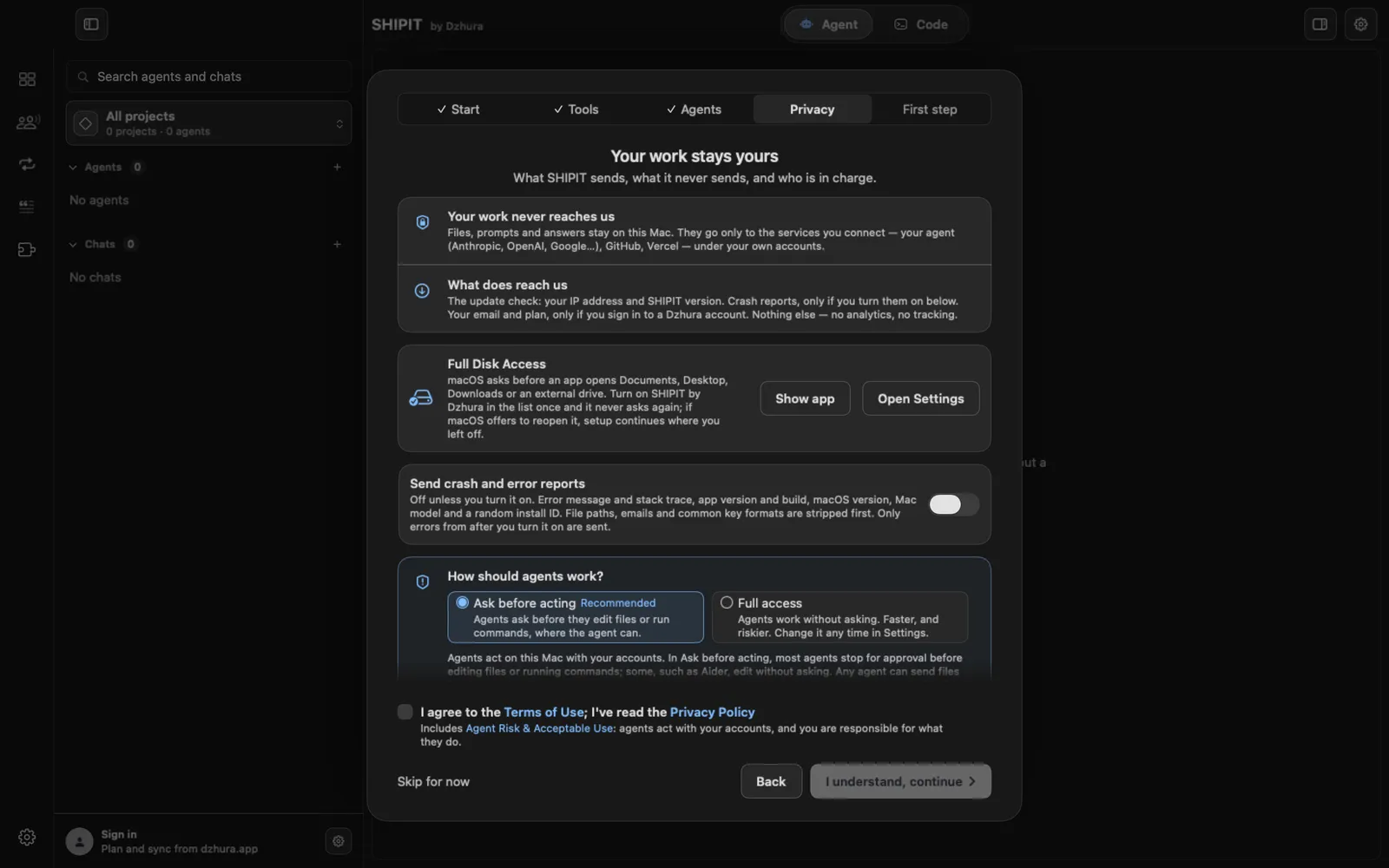
This step says in short what stays on your Mac and what SHIPIT sends. Below is the choice of how agents work: Ask before acting, marked Recommended, is the default, and Full access asks you to confirm first. Crash reports stay off unless you turn them on.
Tick the box next to the Terms of Use and the Privacy Policy. Until you do, the I understand, continue button stays inactive.
TipEvery item on this step is covered in detail in the privacy and access guide.
-
05First step: what to make
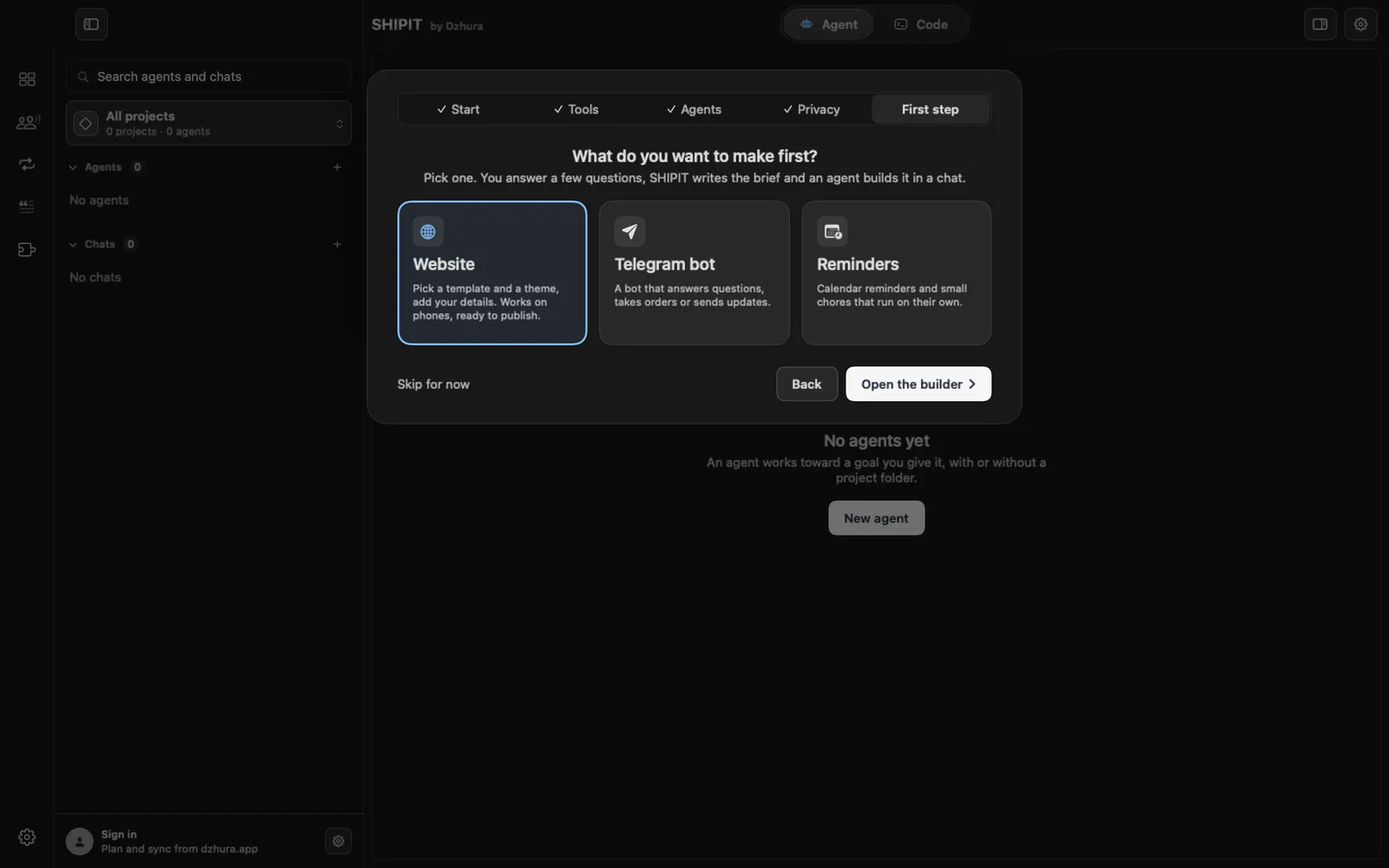
A Beginner sees three options: Website, Telegram bot and Reminders. Pick one and click Open the builder. You answer a few questions, SHIPIT writes the brief and an agent builds it in a chat.
-
06Run the setup again
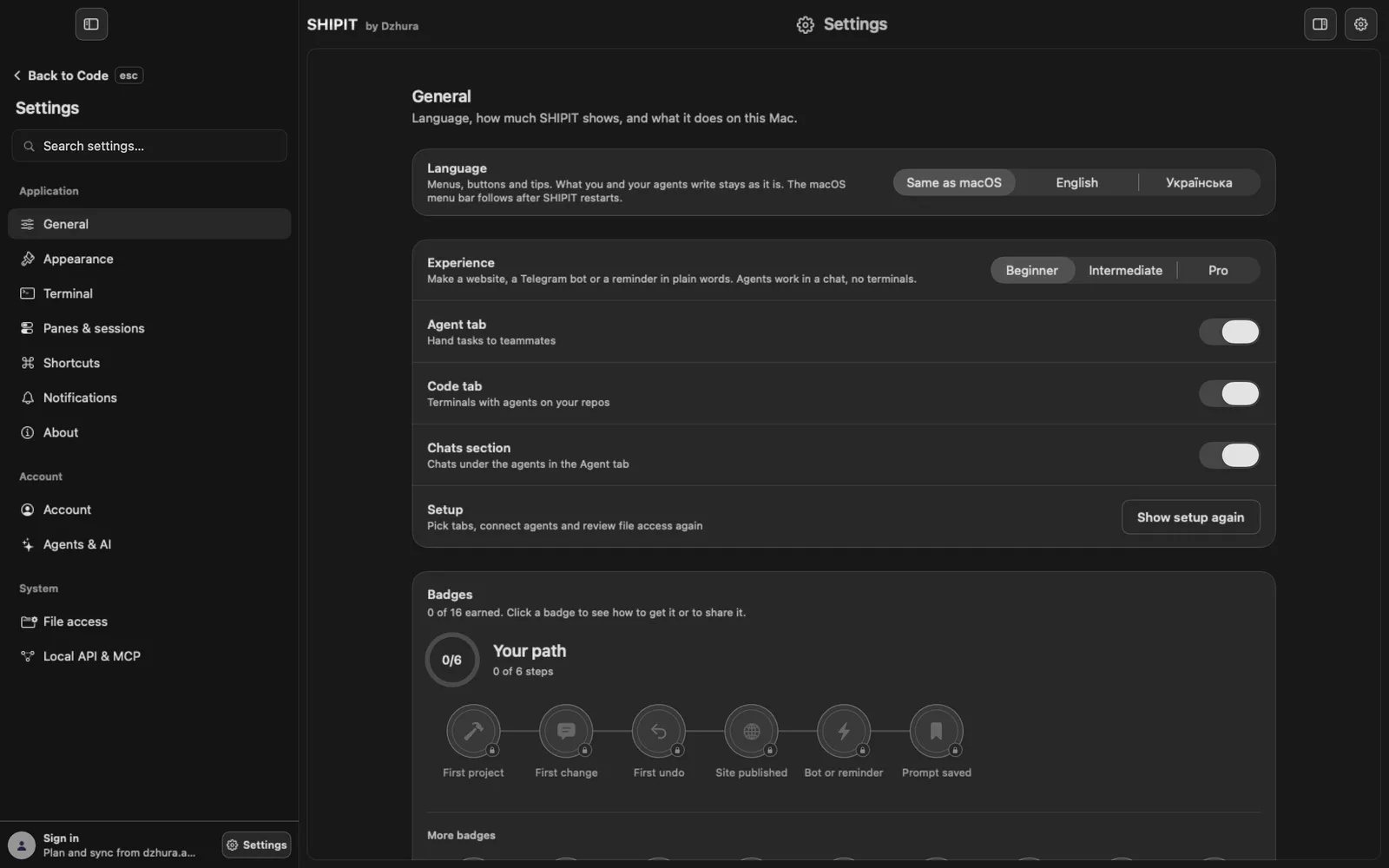
Any step can wait with Skip for now, and Back returns to the step before. To go through it all again, open
Settings › Generaland in the Setup block click Show setup again.
Tips
- Not sure about the level? Pick Beginner: nothing is locked, and the level changes in a minute.
- Git and GitHub are not required for the first launch, but with them every change an agent makes can be undone.
- Every setup step can wait and be picked up again later.
Questions
What happens if I skip the setup?
Nothing is lost. You can go through the steps later: Settings › General › Show setup again.
Where do I change the level later?
In Settings › General, under Experience.
Next
- Levels and tabs: Beginner, Intermediate, ProThe level decides how much SHIPIT shows at once. Nothing is locked: the level and the tabs change any time.
- Privacy and access: what SHIPIT sees and what agents may doYour work stays yours. Here is what SHIPIT sends, how to set the rules for agents and why macOS asks about folder access.
- A tour of the SHIPIT windowA short tour of the window: where to look to start something, watch agents work and find Settings.