The New pane menu
One menu opens any pane: a terminal, a coding agent or a browser. You see where it lands before you click.
-
01Open the menu
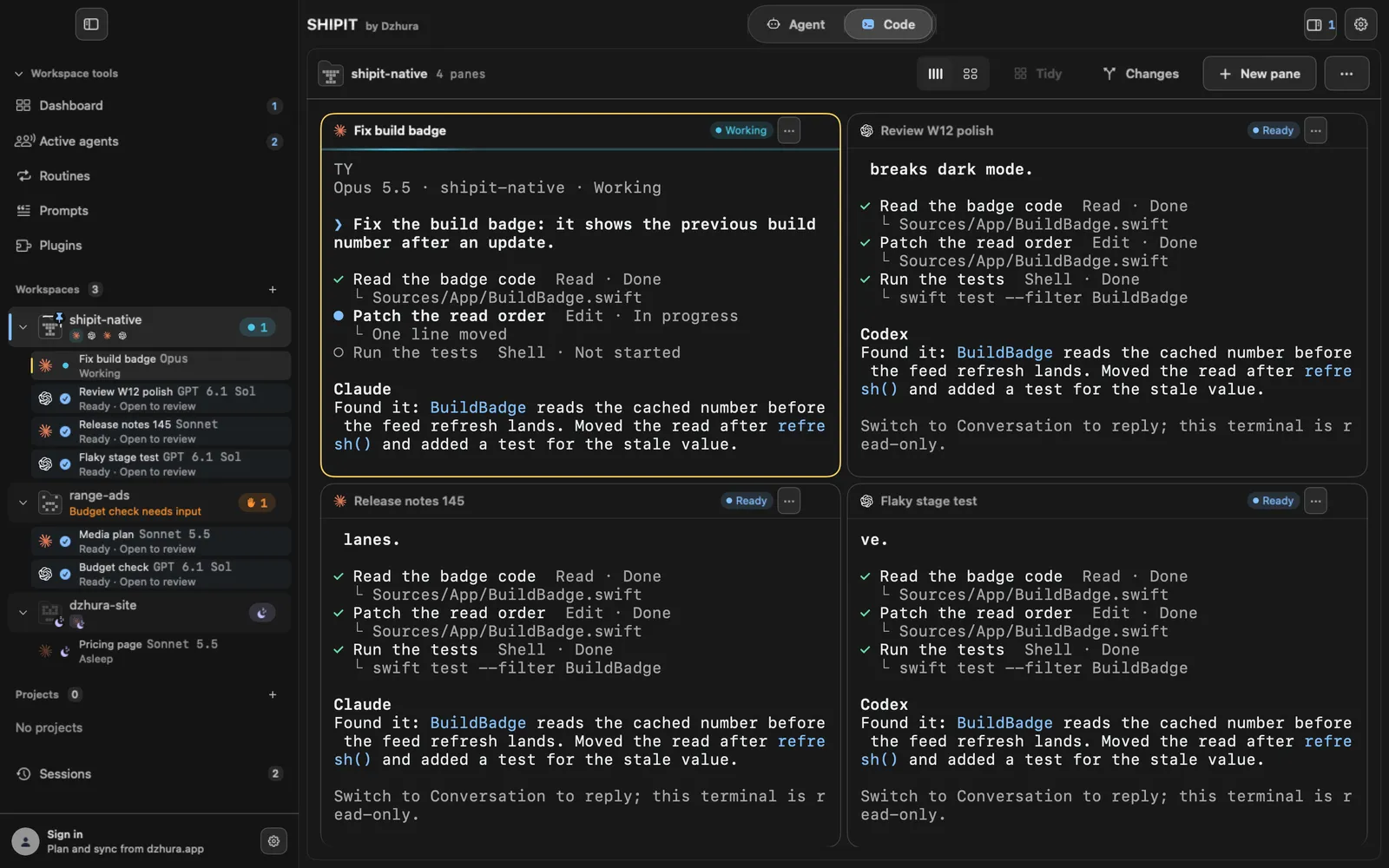
In a workspace, click New pane at the top right. The menu opens over the board of panes.
-
02What the menu holds
At the top, Shell: a plain terminal in the workspace folder. Below it, the coding agents, each with its folder and version. At the bottom, Browser for a web page.
Each row says where it opens, so you never have to guess the folder.
-
03Hover to see the spot
Hover a row and a dashed frame appears on the board, labelled Lands here · ~/folder. Panes that will get narrower are outlined with dashes too.
Nothing changes until you click the row.
-
04An agent you do not have yet
If an agent is not installed, its row says Not installed · opens Settings. Click it: the pane opens on an install card.
-
05More agents
More agents… opens the More agents sheet with a search field. An agent you pick there is pinned to the menu, so it is close at hand next time.
-
06The new pane on the board
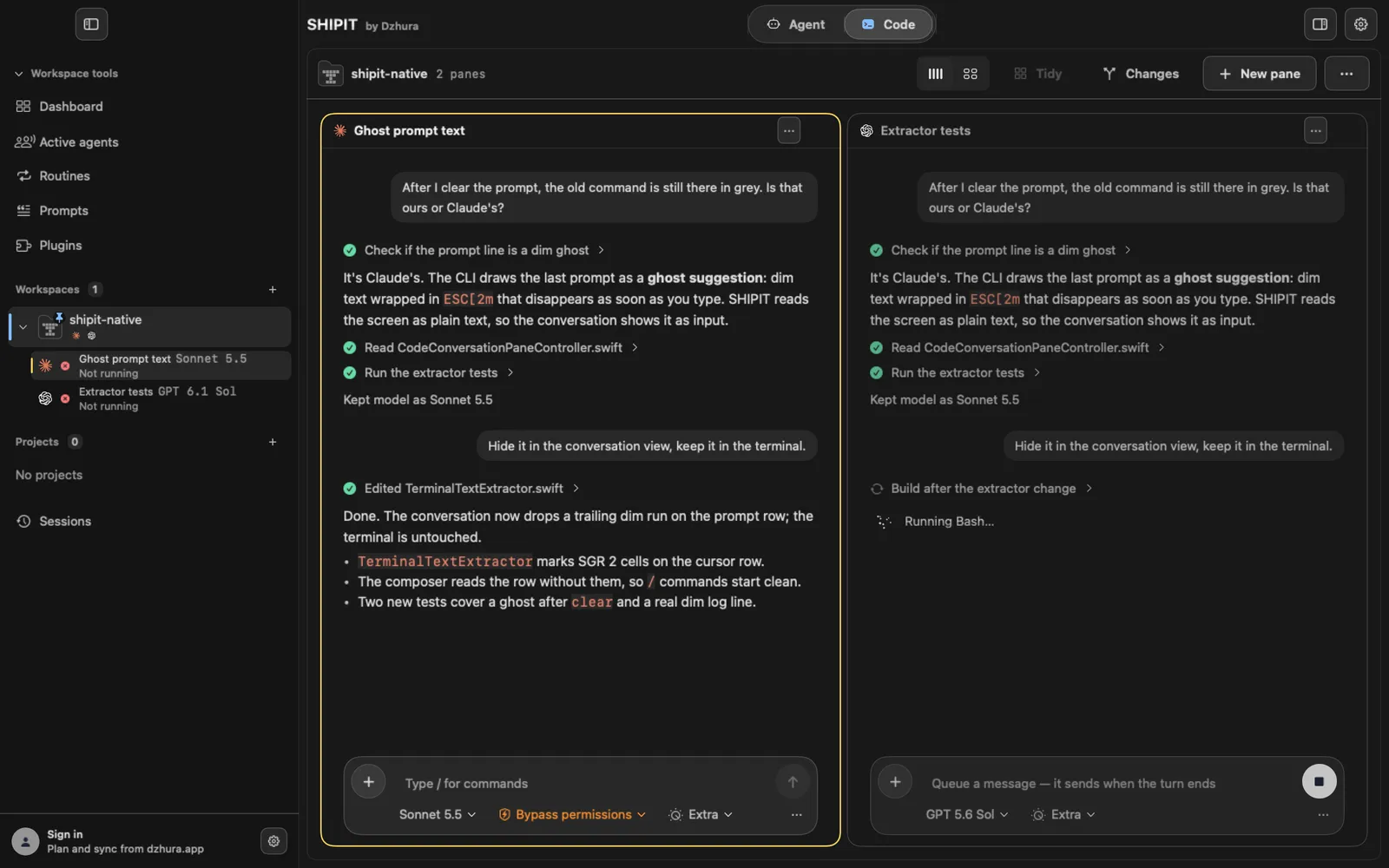
The pane takes its place next to the others and the board shares out the space. An agent pane opens with a message field at the bottom.
Tips
- A terminal opens in the workspace folder, so commands run in the right place straight away.
- The Browser row remembers the last address: under the name you see, for example, Last: localhost:5173.
Questions
Which folder does a new pane open in?
The workspace folder. If the workspace has no folder, your home folder.
Can I add an agent that is not in the list?
Use More agents… and search for it. Once picked, it stays in the menu.
Next
- Workspaces and projectsBy the end you have a workspace with panes for one project, and you know where to find it.
- Pane layoutsSeveral panes on one screen can be laid out the way you like, and put back in order just as quickly.
- The Claude Code paneClaude Code works in your project folder: it reads code, edits files and runs commands. You steer it from the field at the bottom of the pane.
- The Codex paneCodex is a coding agent from OpenAI. You describe the task, and it works in the project folder.
- The browser paneA browser pane shows a page next to the agent and the terminal. Handy for looking at a site you have just built.