Full Disk Access: one switch instead of a dozen prompts
One switch in macOS, and it stops asking about each protected folder while an agent works there.
-
01What it is for
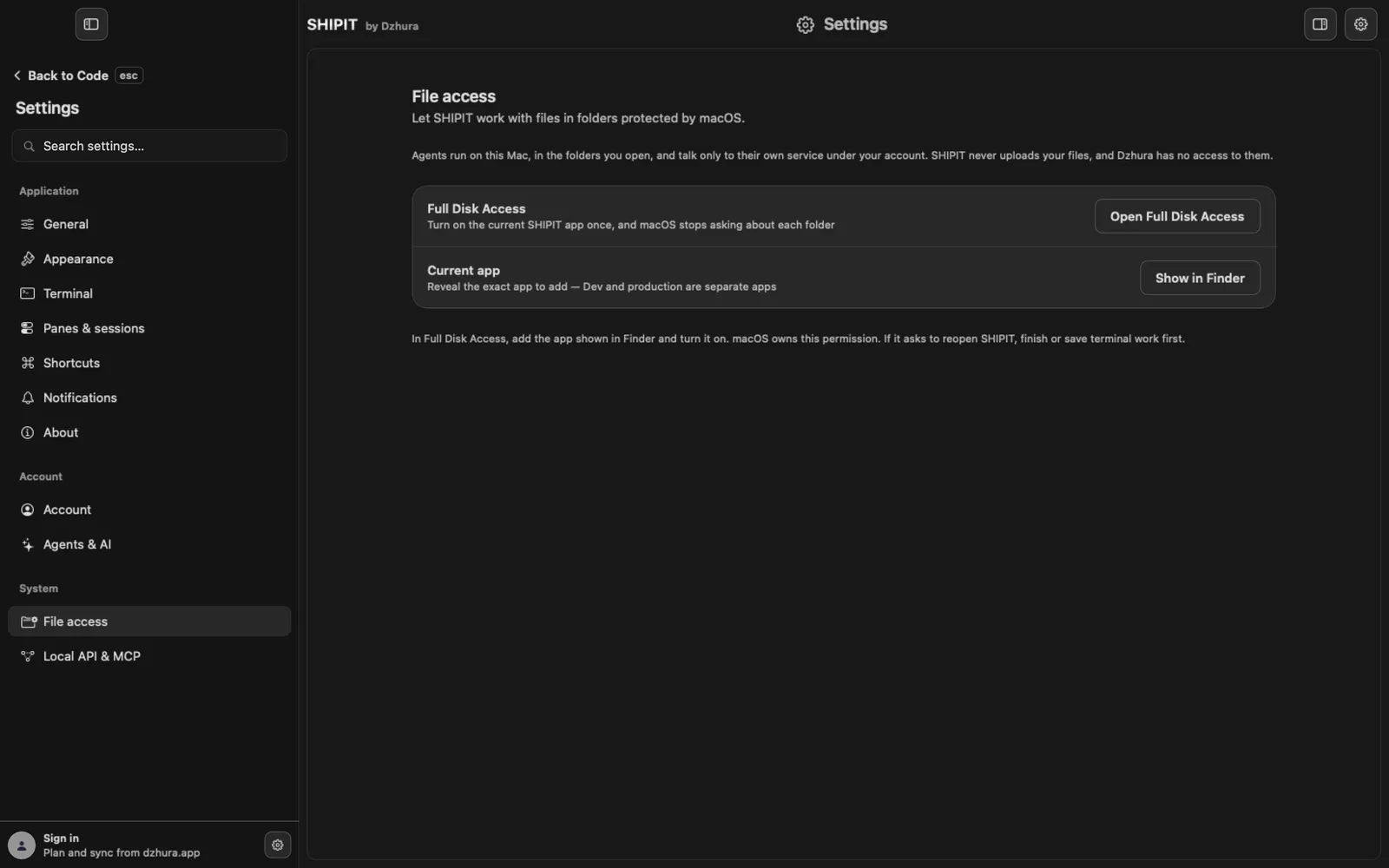
macOS protects Documents, Desktop, Downloads and external drives. When an agent first opens such a folder, macOS asks for permission, and it does so for each folder separately.
Full Disk Access gives that permission once. Agents run on this Mac, in the folders you open. SHIPIT never uploads your files, and Dzhura has no access to them.
-
02Open the macOS list
In
Settings › File accessclick Open Full Disk Access. System Settings opens on the right list, and a small SHIPIT panel appears beside it.During the first setup the Show app and Open Settings buttons do the same.
-
03Do what the panel says
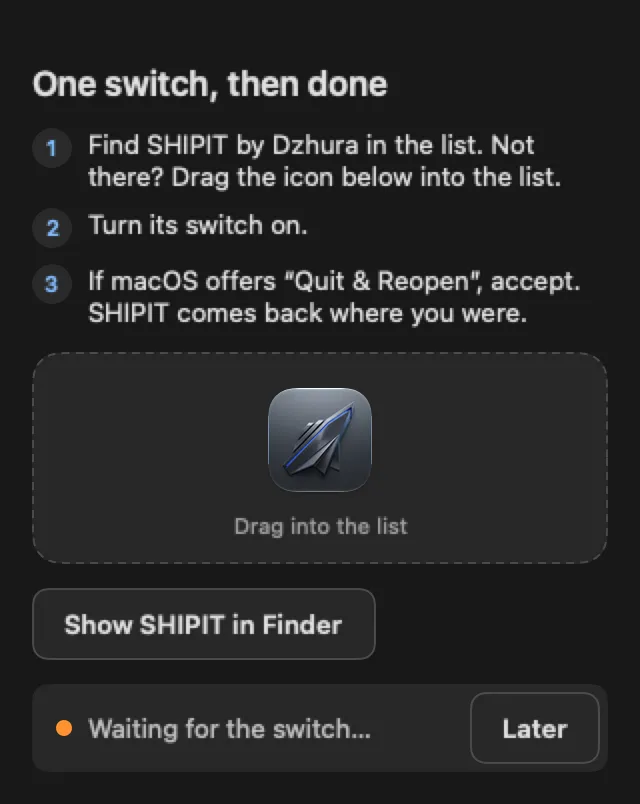
The One switch, then done panel shows three steps. Find SHIPIT in the list. If it is not there, drag the icon from the panel into the list. Turn its switch on.
If macOS offers to reopen SHIPIT, finish or save your terminal work first, then accept. SHIPIT comes back where you were.
TipLater closes the panel and changes nothing.
-
04Add the right app
The Current app row has Show in Finder: it reveals the exact SHIPIT to add to the list. The panel has the same button, Show SHIPIT in Finder.
-
05What changes
As soon as the switch is on, the panel says Done — macOS will not ask again and closes itself a moment later. In Settings the row now reads Full Disk Access · On.
Agents open files in protected folders without a prompt for each. You can turn it off in the same macOS list: macOS owns this permission.
Tips
- Full Disk Access and Full access for agents are different things: the first is about folders in macOS, the second about whether agents ask before acting.
- SHIPIT works without this permission too; macOS just asks about each protected folder.
Questions
Does Dzhura see my files after this?
No. The permission is for the app on your Mac. SHIPIT does not upload files.
I turned the switch on and macOS still asks.
Check that the list holds the exact app that Show in Finder reveals, and that SHIPIT was reopened if macOS asked for it.
Next
- Privacy and access: what SHIPIT sees and what agents may doYour work stays yours. Here is what SHIPIT sends, how to set the rules for agents and why macOS asks about folder access.
- Approvals and Ask before actingYou decide what an agent does on its own and what waits for your yes. Here is where to set it.
- Something is wrong: symptom and fixFind your symptom and do what it says. If that does not help, the last step shows how to tell us.